Map
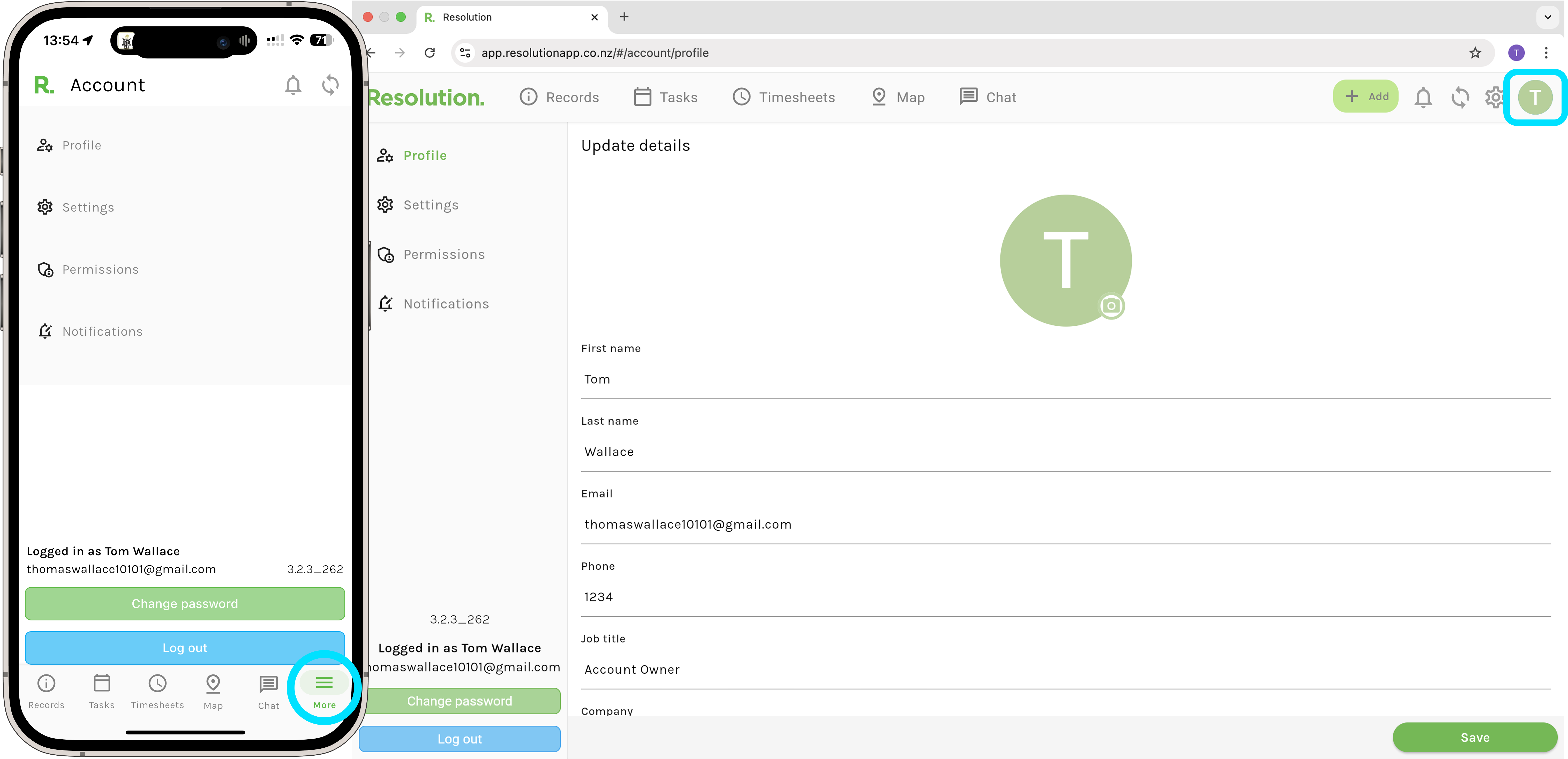
- This is where you will see your farm's interactive map. Down the bottom we have some tools available, such as changing the map view, reseting to default positioning, zooming to your current live location and we can also print the map.
- IMPORTANT: For new users and new Resolution accounts, there are 3 different scenarios you may see.
- Your map is drawn correctly with paddock labels already there, everything is ready to go (as the below image is).
- Your map is drawn correctly, however you are missing paddock labels.
- Your map is not there, or isn't drawn exactly how you would like it and is missing paddock labels.
- For scenarios 2 and 3, it is VERY important that you watch the next video and learn how to create, edit and validate your map so that is ready to use within Resolution. You MUST do this first before beginning to use the features available.
Learn more about Farm Base Map Editor
Farm Settings
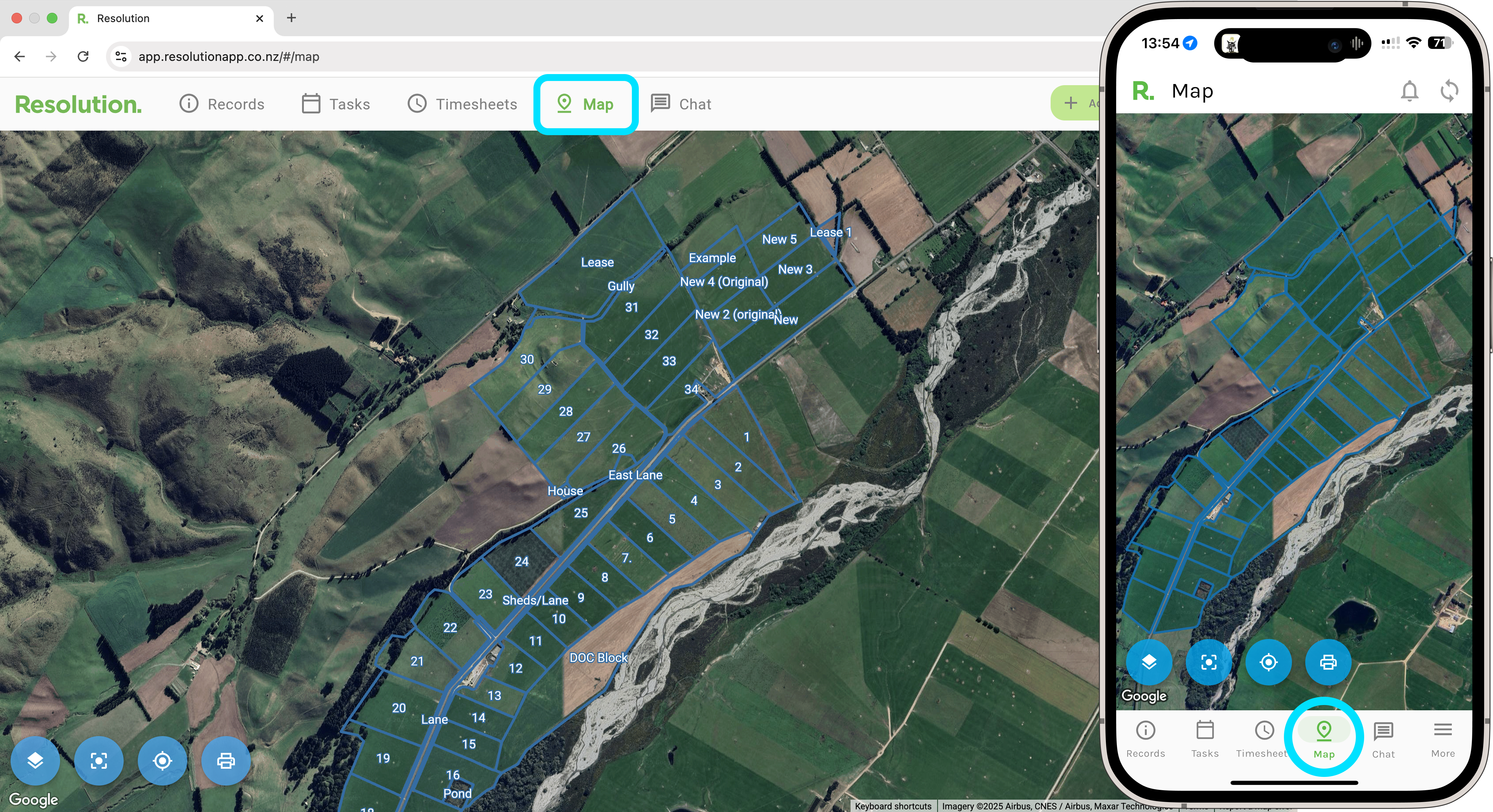
- On Mobile, select ‘More’ and then select ‘Settings’.
- Here you have multiple tabs where you can change your farm tags, details, users and edit your farm map. If you need to create, edit or validate your map, as mentioned earlier, you will do so by clicking on ‘Map’ and then ‘Map Editor’ from this screen.
Learn more about Farm Settings
Tags
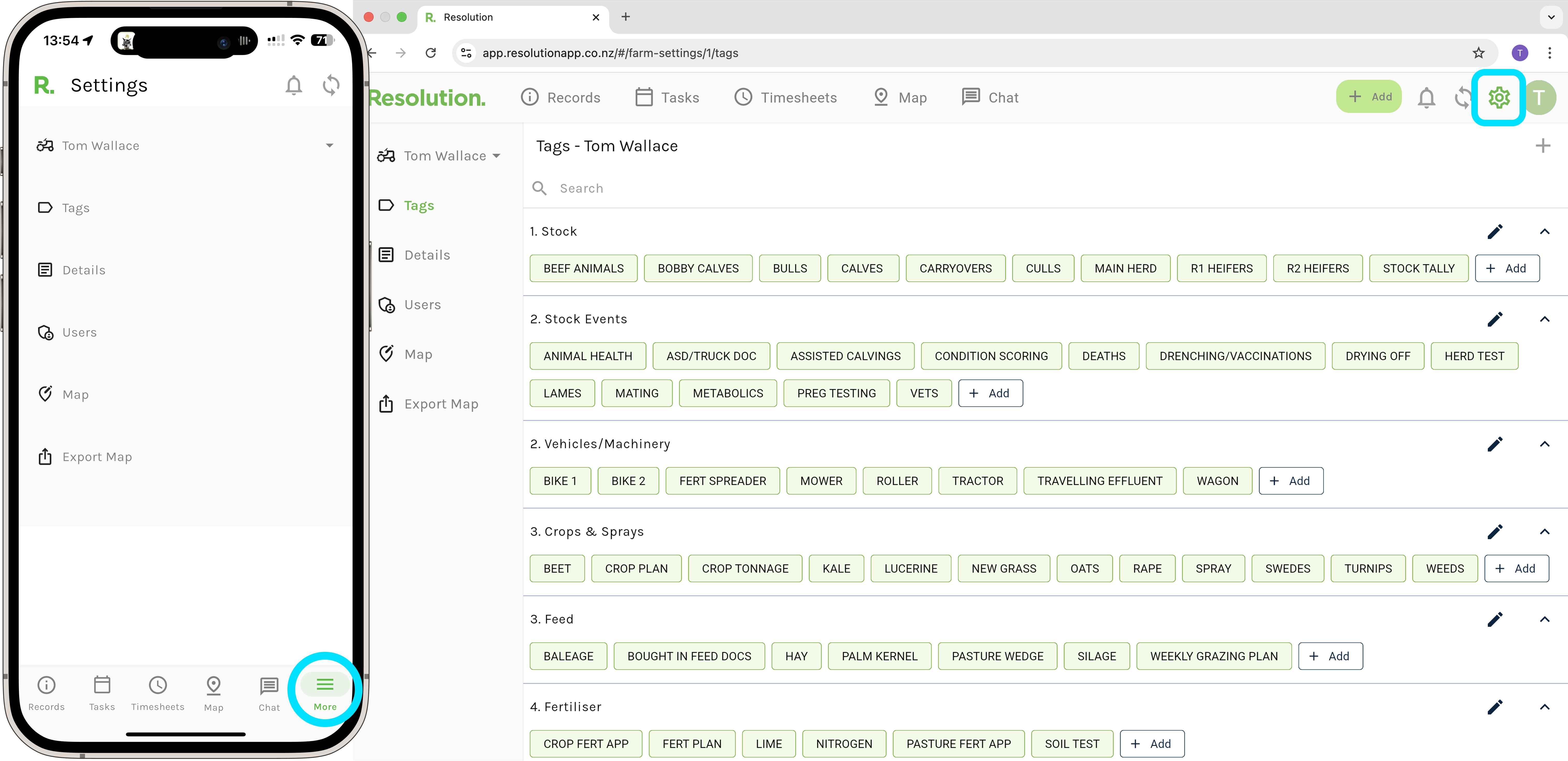
- This is where you will see your farm's tags.
- Every new account is set up with a generic set of tags based on the industry that you are in. These tags are fully customisable.
Learn more about Tags
Users
- This is where you’ll see your farm’s user list and manage permissions, add new users, delete users, and more.
Learn more about Users
Records
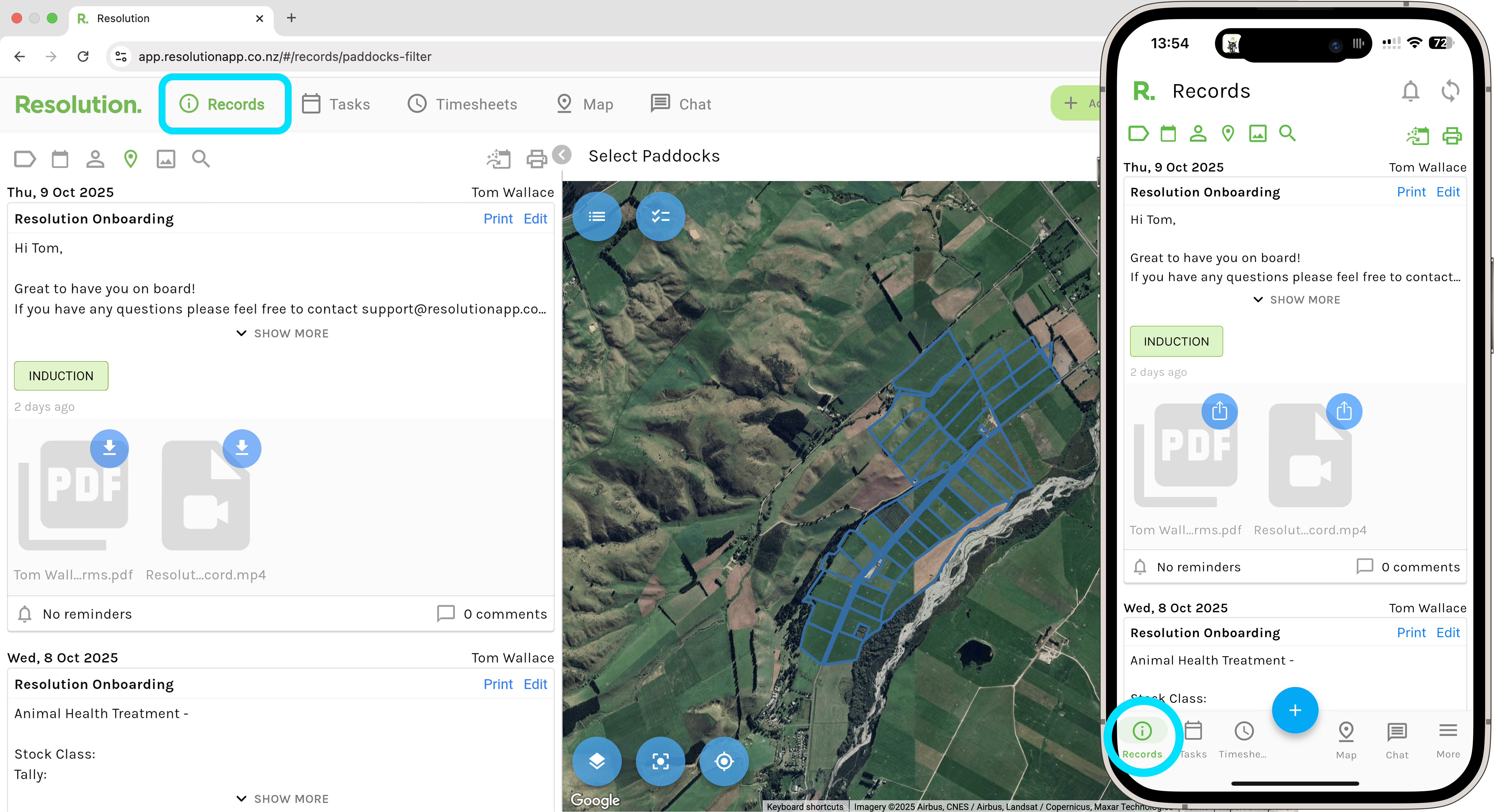
- The default home screen when you log in will be the records page. This is where all of your records, information, and recorded events will list in chronological order (on the left hand side for desktop).
- On the right hand side of your screen (desktop) we have the interactive map.
- You will see some records already added from ‘Resolution Onboarding’, including a welcoming record with some information, and then some template records for you to use and get started.
Learn more about Records
Tasks
- This is where all tasks will be listed in chronological order (on the left hand side for desktop). There are also tabs to view all tasks, my tasks (that have been assigned to you), and then complete and incomplete tasks.
- On the right hand side of your screen (desktop) we have the interactive map.
Learn more about Tasks
Timesheets
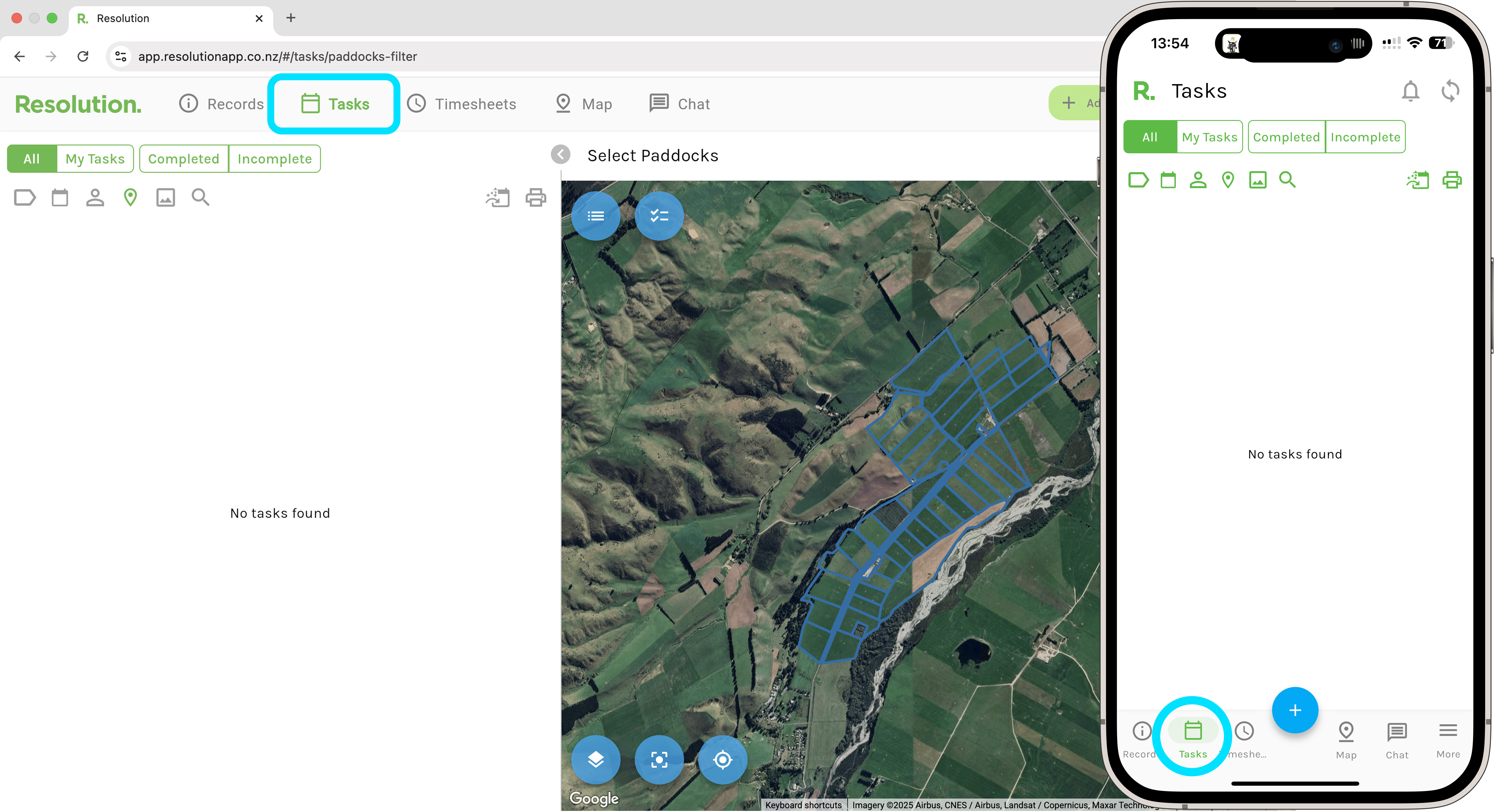
- This is where all timesheets will be listed in chronological order (on the left hand side for desktop). There are also tabs to view approved and unapproved timesheets.
- On the right (desktop) you can filter by farm users/ staff.
Learn more about Timesheets
Chat
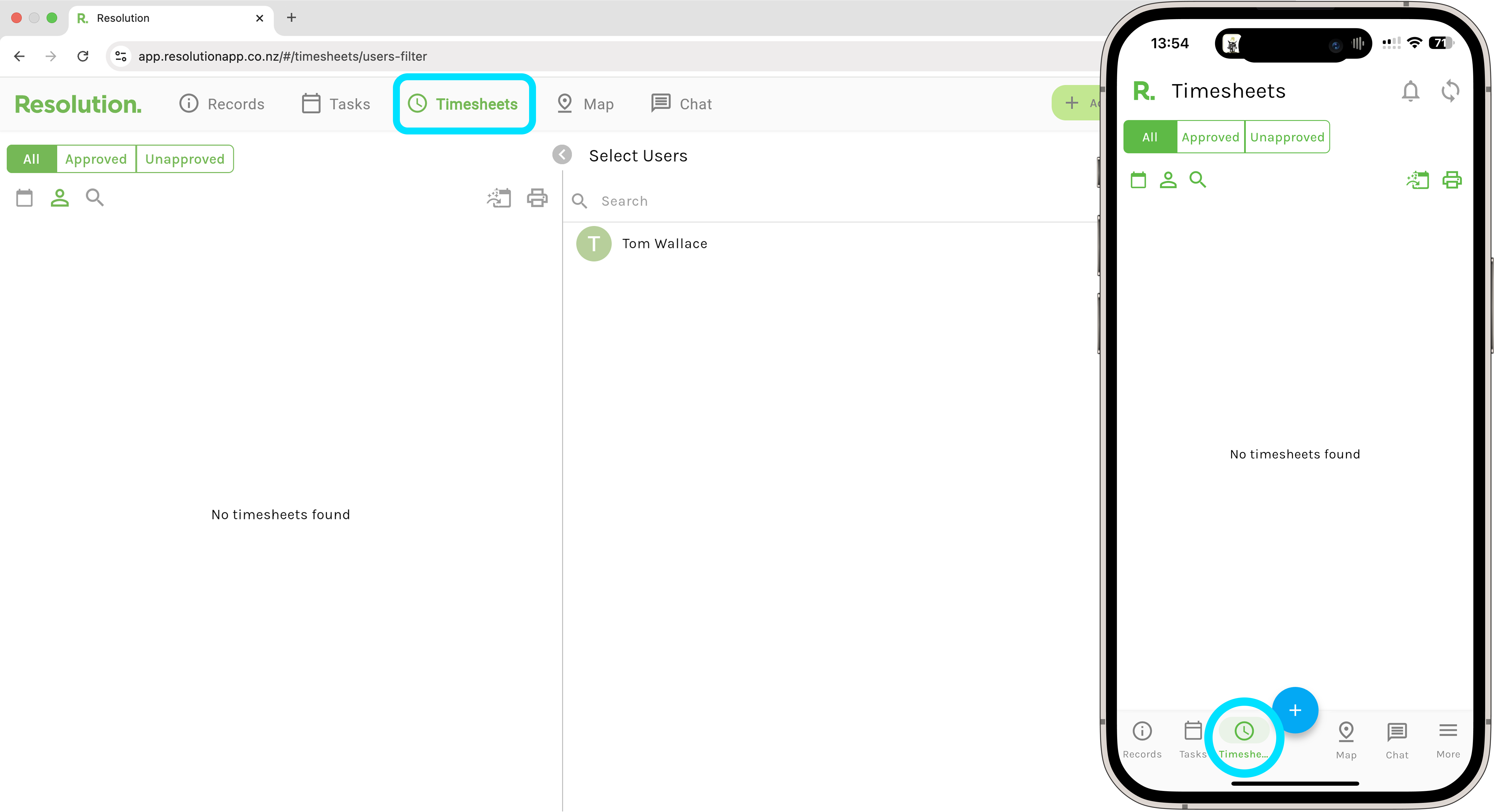
- This is where all your on going chat conversations will be. On the left is the list of chats, and on the right (once you select a chat) will be the messaging and functionality.
- Select the blue plus sign to create new direct chats and group chats with your farm users.
Learn more about Chat
Add Button
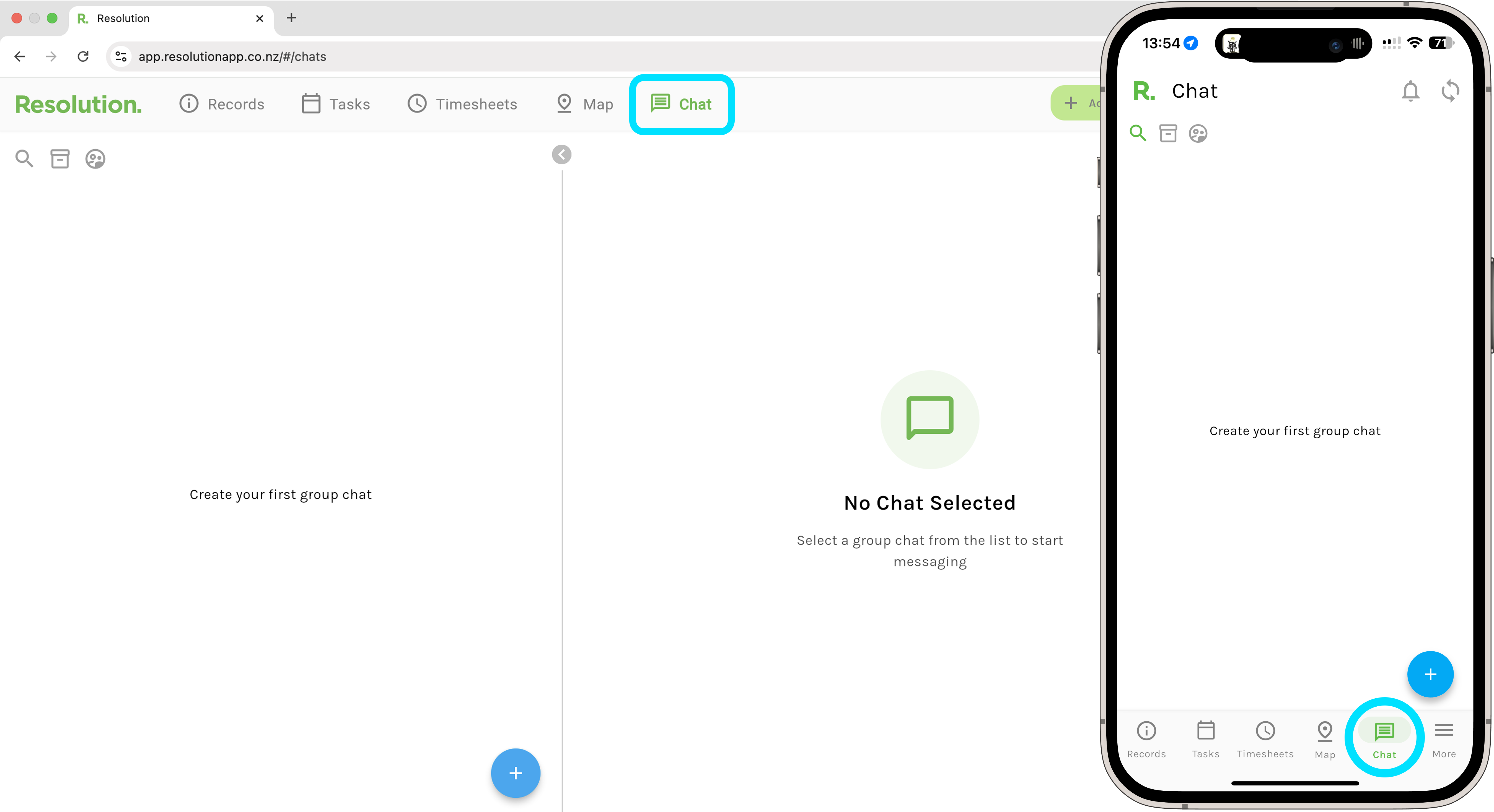
- This is where you can create records, tasks and timesheets.
- After you create one, it will be added to the corresponding page.
- Pro Tip: If you are already on either the records, tasks or timesheets page, you can press and hold the blue add button on mobile to automatically begin creating a record, task or timesheet. For example, if you are on the records page and press and hold, you will begin creating a record.
Notifications
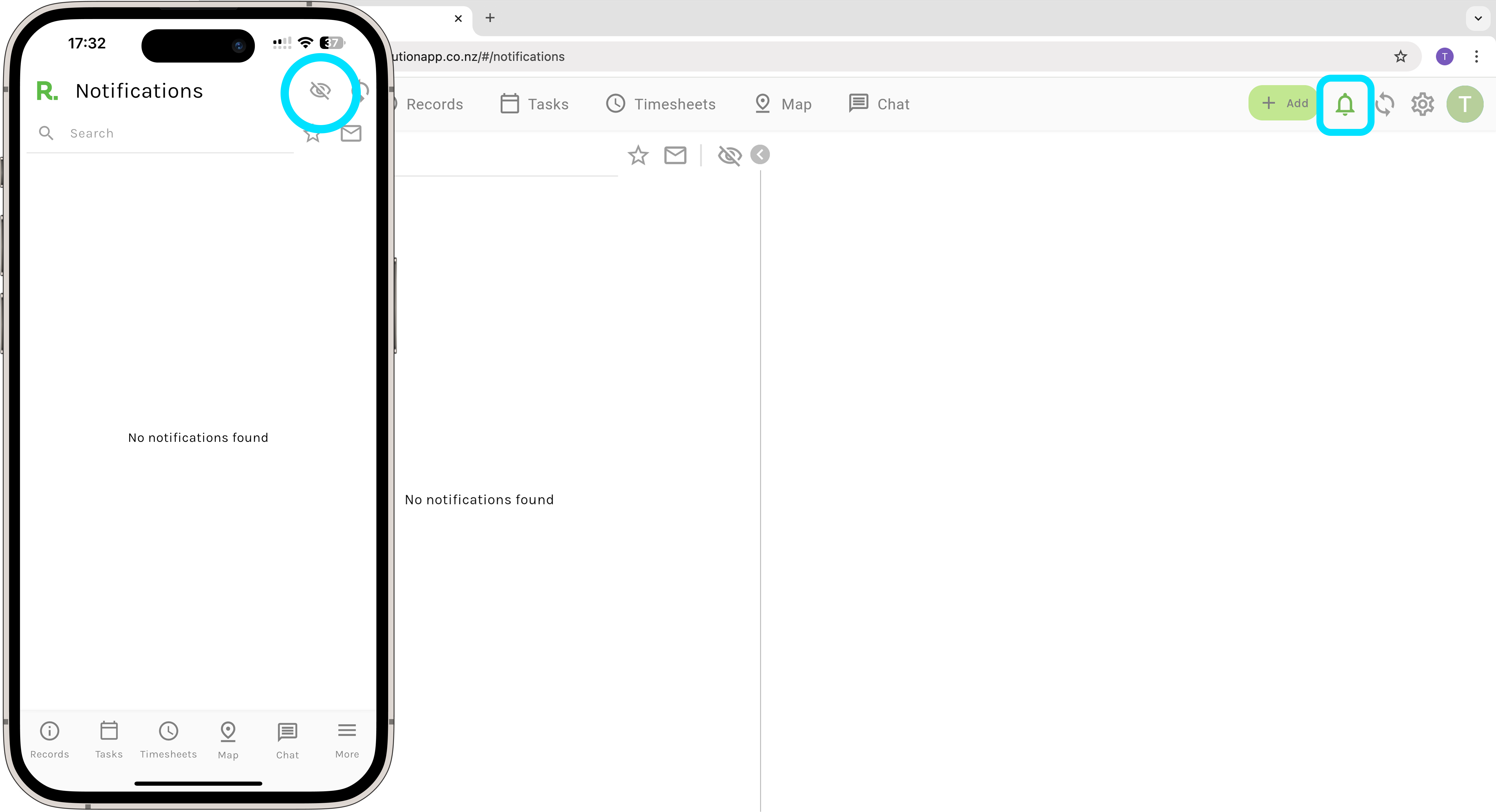
- All your notifications will list here, including unread notifications.
Learn more about Notifications
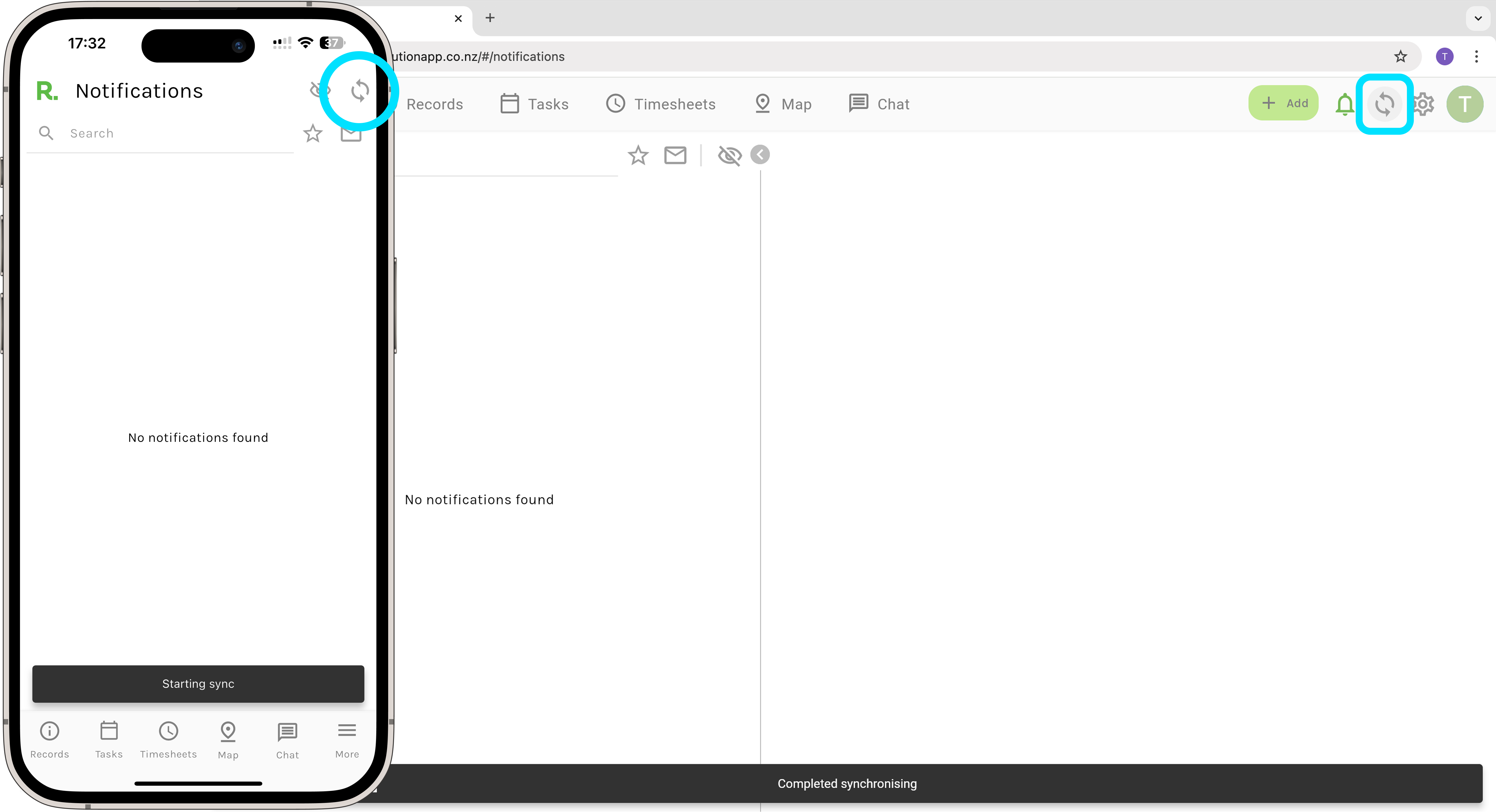
Synchronise Button
- Select this to ensure your farm is up to date with the latest information.
Account Settings
- On Mobile, select ‘More’ and then select ‘Account’.
- Here you have multiple tabs where you can change your profile settings, time format, language, notifications, password and more.
Learn more about Account Settings