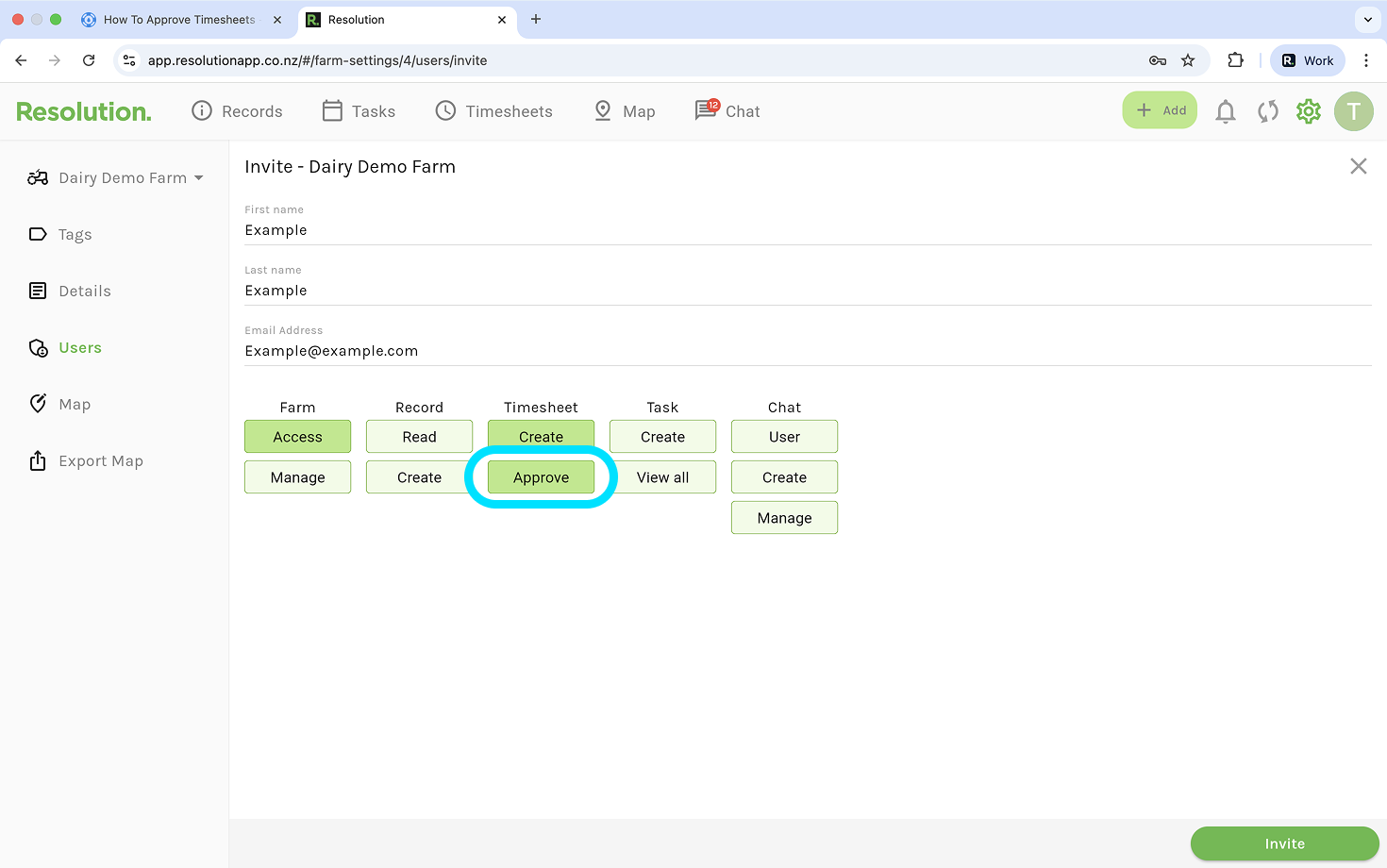
Permissions Required
- In order to approve timesheets, you will need the ‘Approve’ timesheet permission enabled.
- This will also allow you to view all timesheets and edit other users timesheets.
How To Approve Timesheets - Desktop
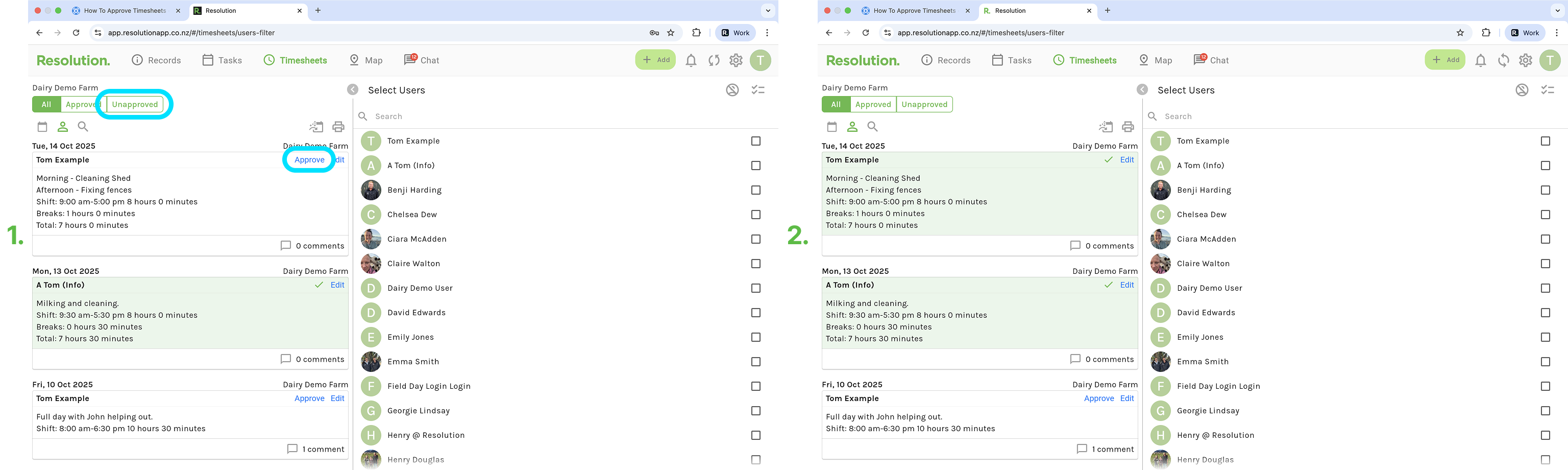
- Click on “Timesheets” along the top bar of Resolution.
- In the ‘All’ tab, you will see all the timesheets, approved and unapproved. If you wish, you can select the ‘Unapproved’ tab.
- Select ‘Approve’ if you are happy with the timesheet.
- If you aren't happy with the details, you can either select ‘Edit’ and change the details, or leave a comment underneath to clarify something with the user before selecting ‘Approve’.
NOTE: Editing a timesheet or leaving a comment will send the creater of the timesheet a notification updating them on your action.
How To Approve Timesheets - Mobile
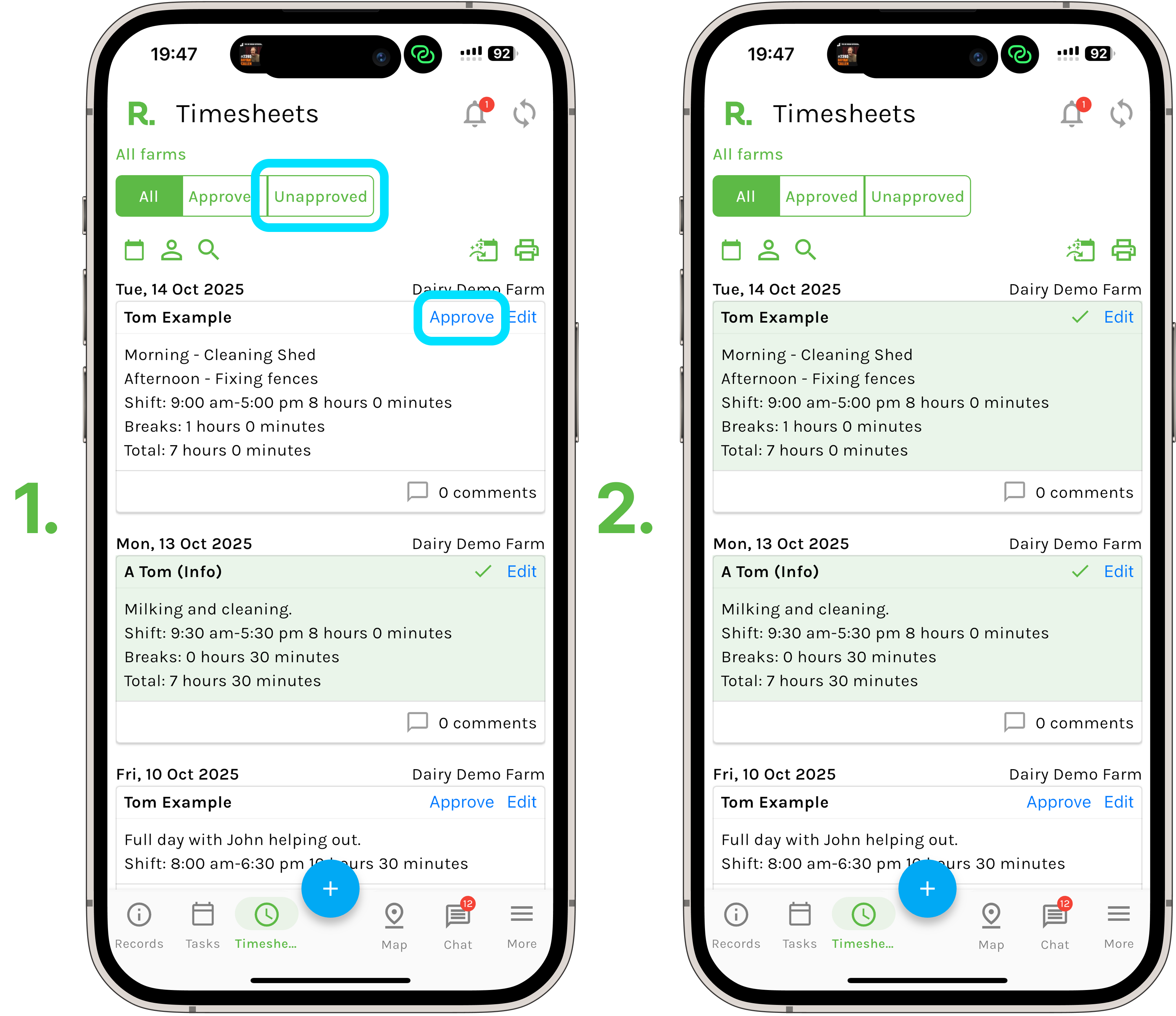
- Tap on “Timesheets” along the bottom bar of Resolution.
- In the ‘All’ tab, you will see all the timesheets, approved and unapproved. If you wish, you can select the ‘Unapproved’ tab.
- Select ‘Approve’ if you are happy with the timesheet.
- If you aren't happy with the details, you can either select ‘Edit’ and change the details, or leave a comment underneath to clarify something with the user before selecting ‘Approve’.
NOTE: Editing a timesheet or leaving a comment will send the creater of the timesheet a notification updating them on your action.