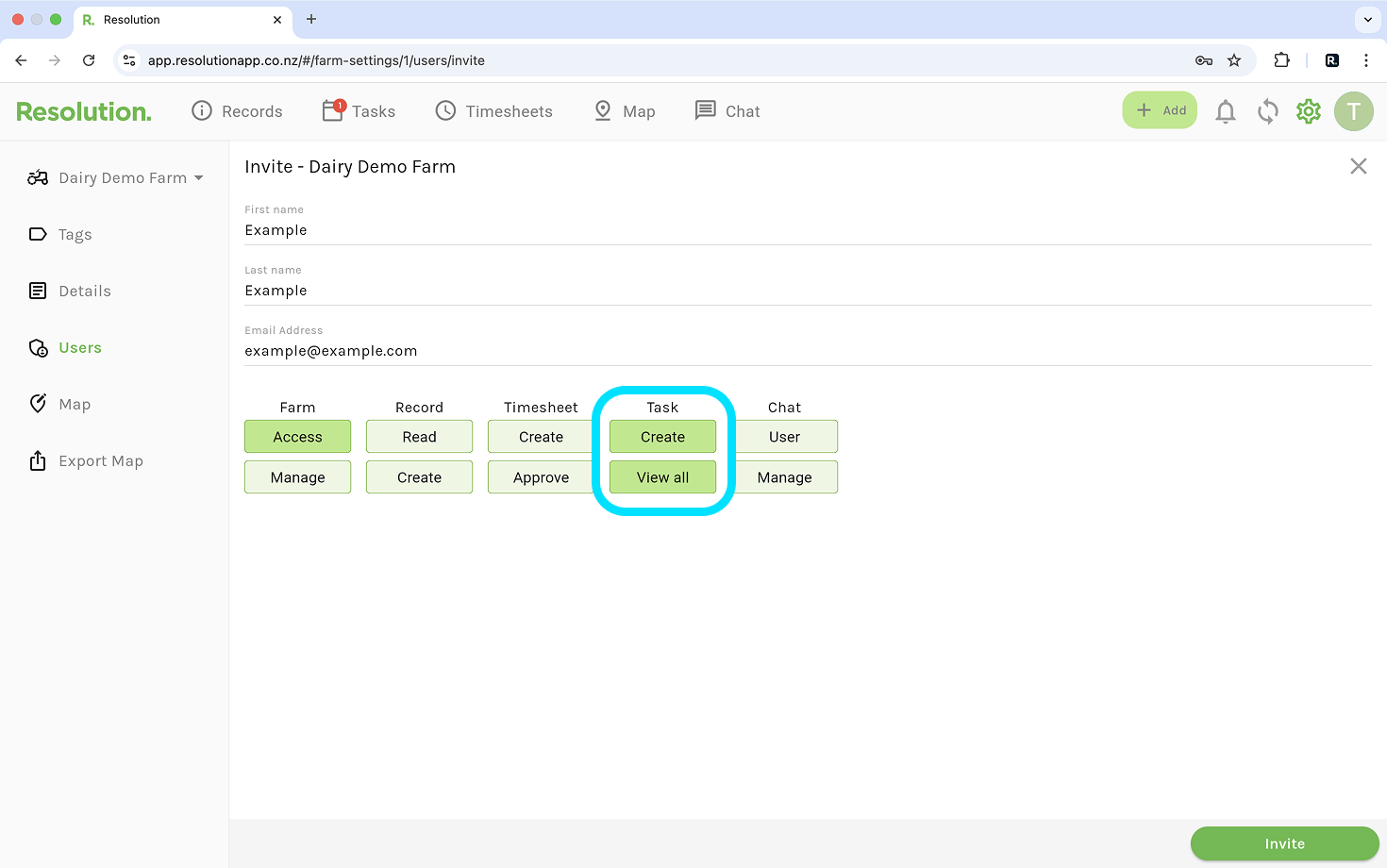
Task Permissions
- If a user only has the ‘Create’ task permission, they can only edit their own tasks.
- If a user also has the ‘View all’ task permission, they can edit all tasks.
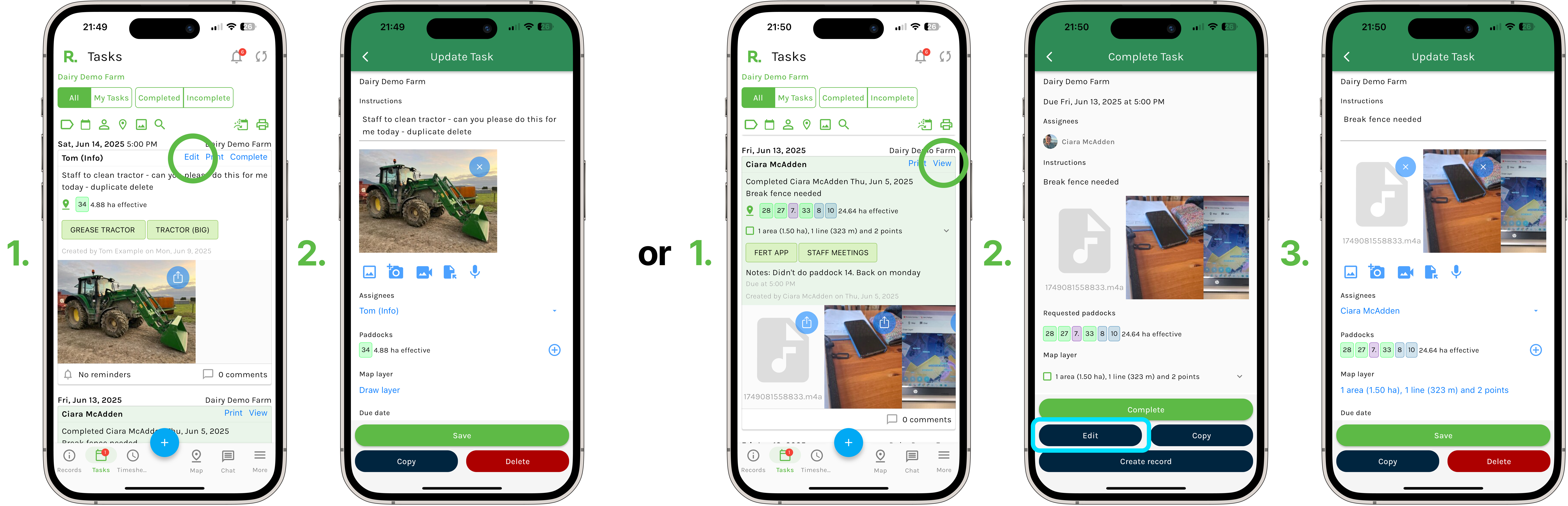
Steps to Edit a Task - Mobile
- Navigate to the tasks page.
- Identify the task you wish to edit (using the filters if needed).
- For an incomplete task: Select ‘Edit’.
- For a completed task: Select ‘View’ and then select ‘Edit’.
- Make any changes you wish to instructions , attachments, assignee etc.
- Select ‘Save’.
- Any user associated with that task will be notified that is has been edited.
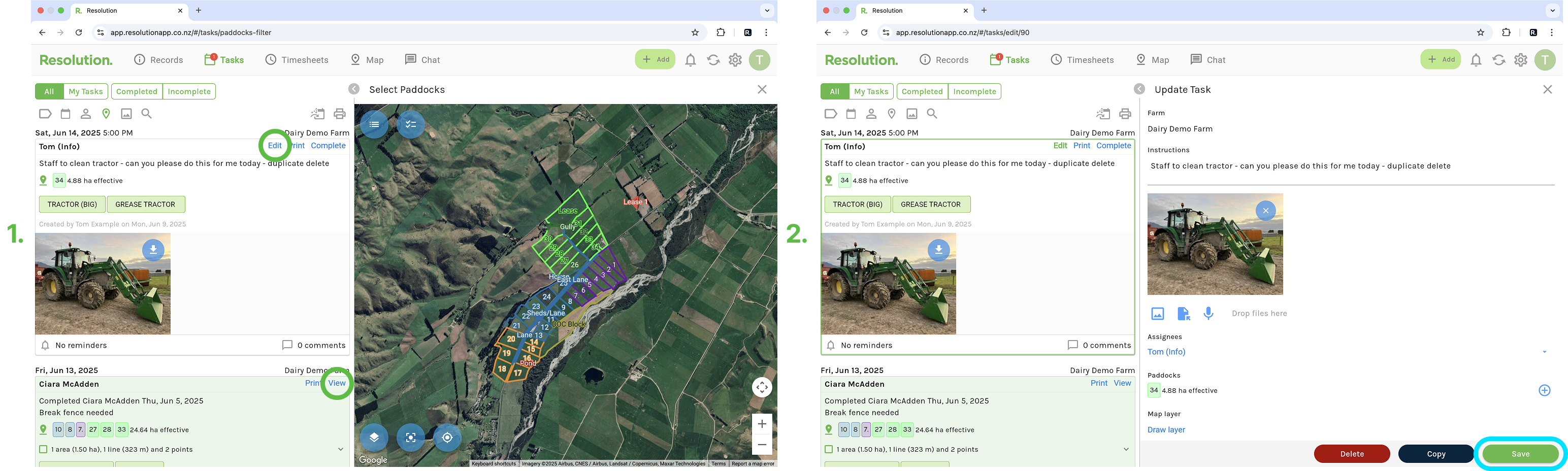
Steps to Edit a Task - Desktop
- Navigate to the tasks page.
- Identify the task you wish to edit (using the filters if needed).
- For an incomplete task: Select ‘Edit’.
- For a completed task: Select ‘View’ and then select ‘Edit’.
- Make any changes you wish to instructions , attachments, assignee etc.
- Select ‘Save’.
- Any user associated with that task will be notified that is has been edited.