
Steps to Delete a Task - Mobile
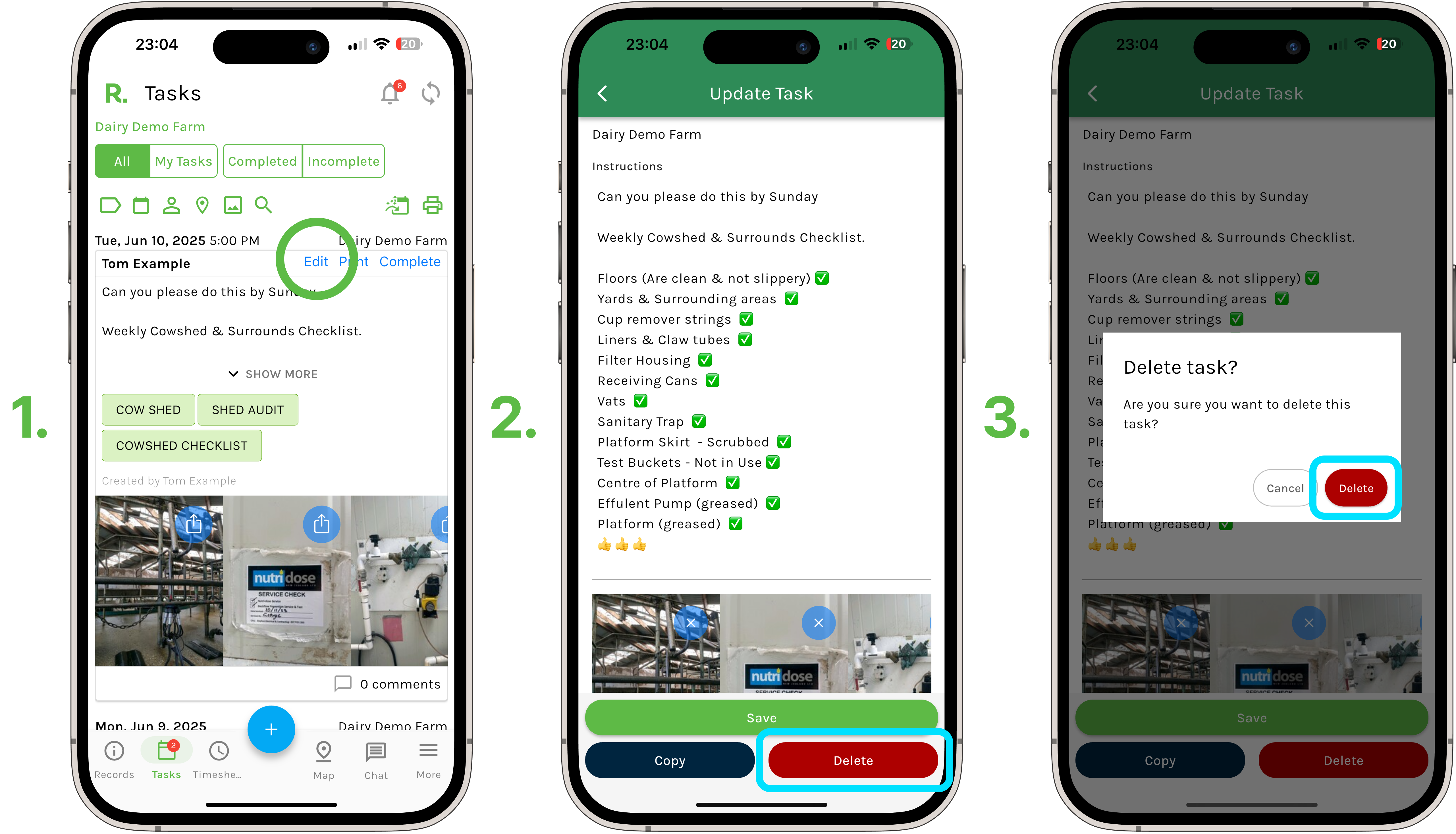
- Navigate to the tasks page.
- Identify the task you wish to delete (using the filters if needed).
- For an incomplete task: Select ‘Edit’.
- For a completed task: Select ‘View’ and then select ‘Edit’.
- Select ‘Delete’.
- Select ‘Delete’ once more to confirm.
- Any user associated with the task will be notified that is has been deleted.
Steps to Delete a Task - Desktop
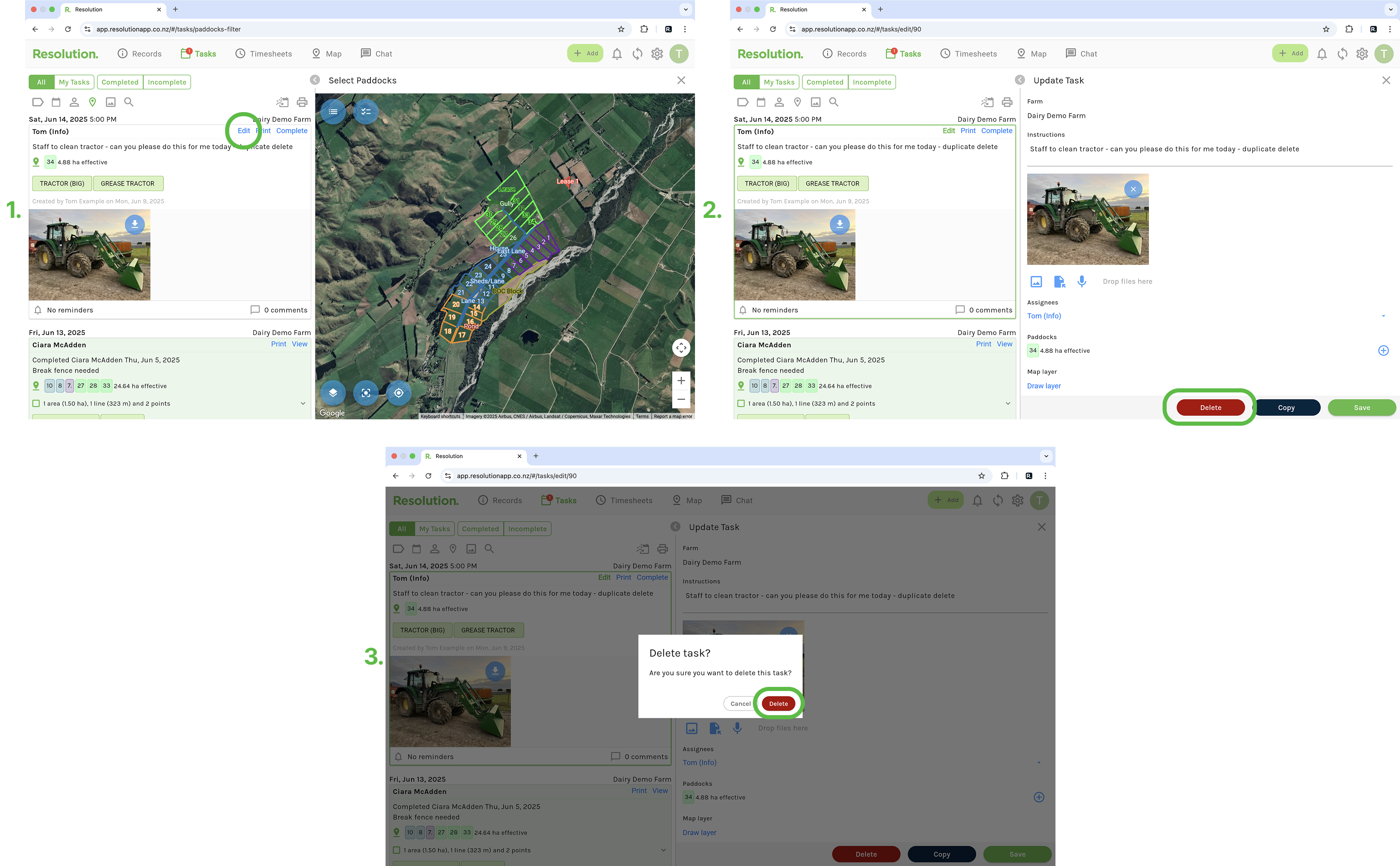
- Navigate to the tasks page.
- Identify the task you wish to delete (using the filters if needed).
- For an incomplete task: Select ‘Edit’.
- For a completed task: Select ‘View’ and then select ‘Edit’.
- Select ‘Delete’.
- Select ‘Delete’ once more to confirm.
- Any user associated with the task will be notified that is has been deleted.
Best Practices
- We recommend that you double check before deleting any information from Resolution.
- If you are unsure about the task, and whether you want to delete the information. Consider creating a tag category named ‘Z Archived’ and place this in a tag category named ‘Z Archived’ (explained here in Deleting Tags). This way the task will be out of the way.