
Steps to Copy a Task - Mobile
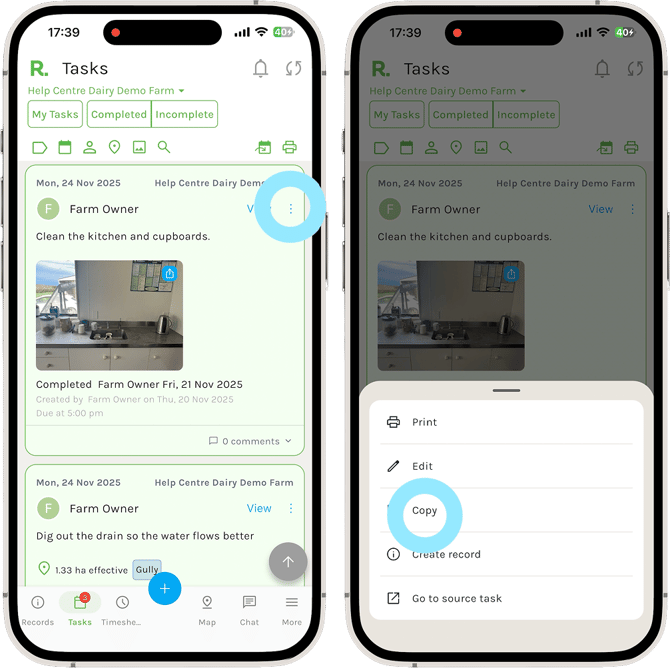
- Navigate to the tasks page.
- Identify the task you wish to copy (using the filters if needed).
- Select the three dots menu at the top right of the record.
- Select ‘Copy’.
- Make any changes to the task as you wish.
- Select ‘Save’.
NOTE: The due date of the task will automatically update to your current date when copying a task.
Steps to Copy a Task - Desktop
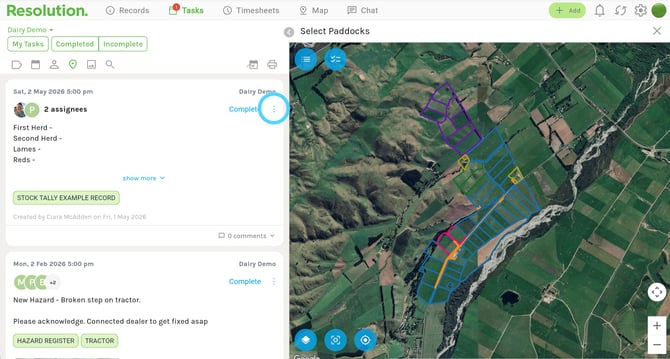
- Navigate to the tasks page.
- Identify the task you wish to copy (using the filters if needed).
- Select the three dots menu at the top right of the record.
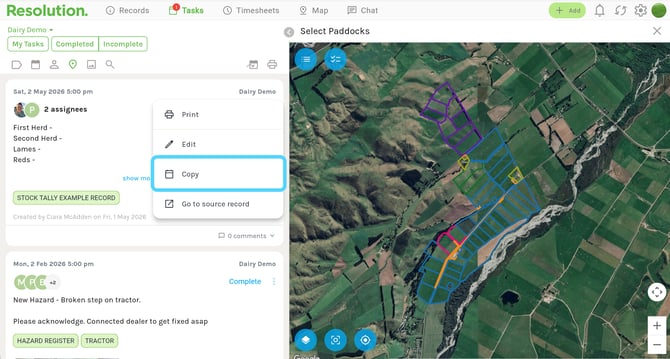
- Select ‘Copy’.
- Make any changes to the task as you wish.
- Select ‘Save’.
NOTE: The due date of the task will automatically update to your current date when copying a task.
Best Practices
- This is a useful tool to use when you have tasks that are very similar in structure, such as a weekly shed cleaning. Instead of re-writing the whole checklist, you can copy the task, adjust where need be, delete the previous photos and add new ones and assign to a user. Saving a lot of time.