Access to Different Farms
- In order to be able to copy record and tasks from one farm to another, you must have access to multiple farm accounts.
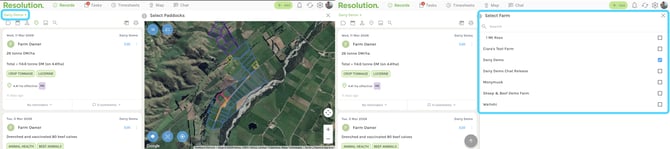
- One of the ways to view if you have access to different farms is from the records timeline, select the current farm, and view if you have other farms available.
Steps to Copy Record or Task to Other Farm - Mobile
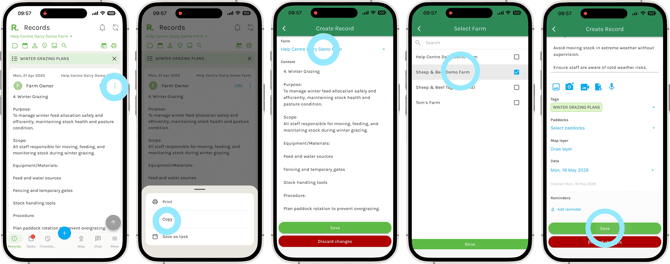
- From either the records or task page, identify the record or task you wish to copy (using the filters if needed).
- Select the three dots menu at the top right of the record or task.
- Select ‘Copy’.
- At the top of your screen you will see your current farm, in blue. To change the farm, select this.
- Choose which farm you wish to copy the record or task to.
- Select ‘Done’.
- Make any changes to the record or task as you wish.
NOTE: The date will automatically have updated to your current date, and you will need to re-select relevant tags for the record or task.
- Select ‘Save’.
- Your record or task will now be visible in the timeline of the new farm it has been copied to.
Steps to Copy Record or Task to Other Farm - Desktop
- From either the records or task page, identify the record or task you wish to copy (using the filters if needed).
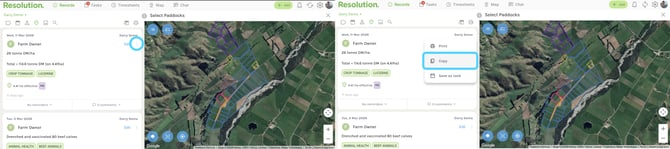
- Select the three dots menu at the top right of the record or task.
- Select ‘Copy’.
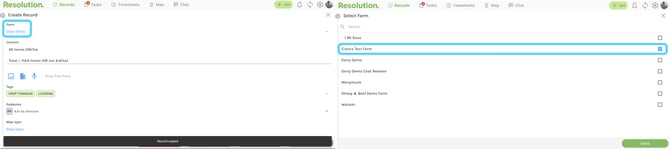
- At the top of your screen you will see your current farm, in blue. To change the farm, select this.
- Choose which farm you wish to copy the record or task to.
- Select ‘Done’.
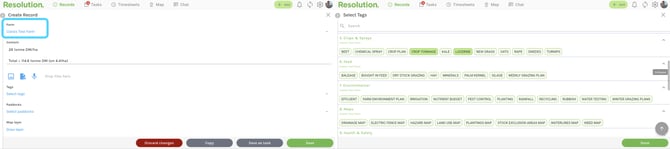
- Make any changes to the record or task as you wish
NOTE: The date will automatically have updated to your current date, and you will need to re-select relevant tags for the record or task.
- Select ‘Save’.
- Your record or task will now be visible in the timeline of the new farm it has been copied to.