
Steps to Transfer a Record to a Task - Mobile
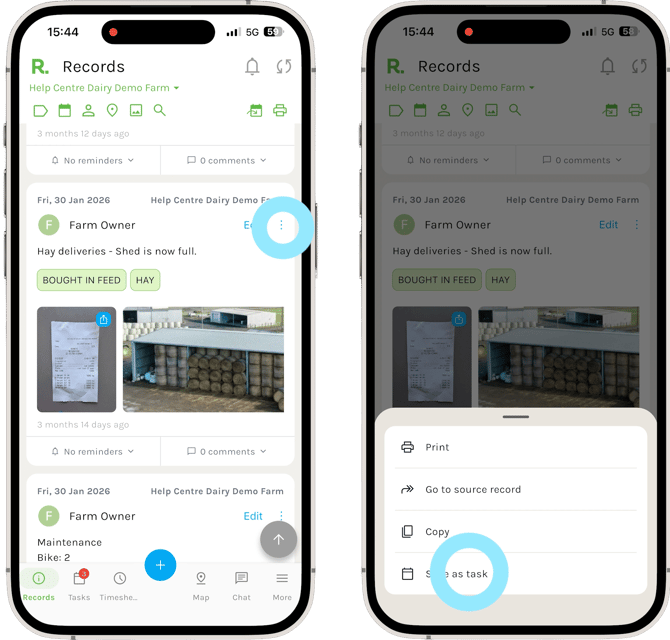
- Navigate to the records timeline.
- Identify the record you wish to transfer to a task (using the filters if needed).
- Select the three dots menu at the top right of the record.
- Select ‘Save as task’.
- Make any changes to the new task that you wish.
- Add an assignee and due date.
- Select ‘Save’.
Steps to Transfer a Record to a Task - Desktop
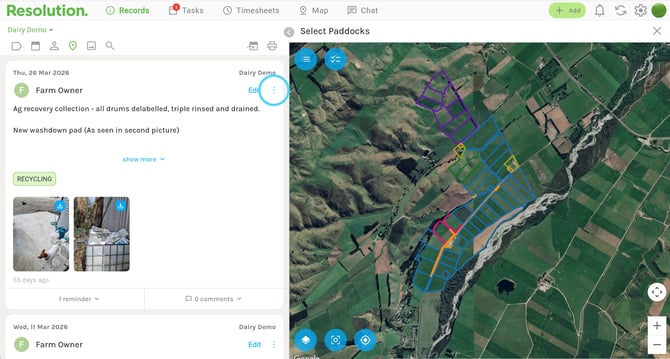
- Navigate to the records timeline.
- Identify the record you wish to transfer to a task (using the filters if needed).
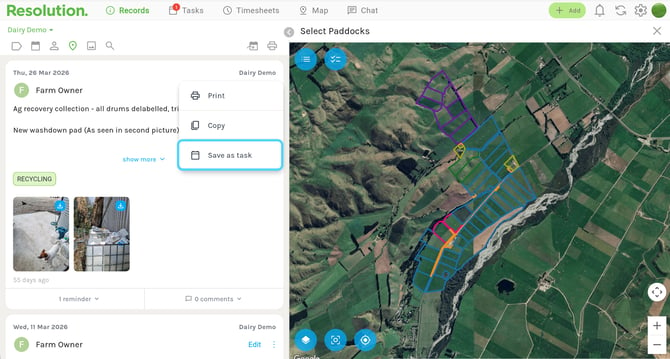
- Select the three dots menu at the top right of the record.
- Select ‘Save as task’.
- Make any changes to the new task that you wish.
- Add an assignee and due date.
- Select ‘Save’.
Best Practices
- This can be also done in reverse, where you can save a task as a record. To view this lesson in reverse, click Transfer Task to a Record.