
Contact Us

If you still have questions or prefer to get help directly from our support team, please contact support below.

Contact Support
  • Home
  • Pricing
  • About
  • Support
English (UK)
US English (US)
GB English (UK)
  • Home
  • Settings
  • Account Settings

Change Text Size

Learn how to change the size of your text within your Resolution app and desktop to make it more readable.

Written by Thomas Wallace

Updated at February 22nd, 2026

Contact Us

If you still have questions or prefer to get help directly from our support team, please contact support below.

Contact Support
  • Getting Started
    Welcome Email and First Logging In Basic App Navigation Logging In as a New User
  • Base Map
    Farm Base Map Editor Export Map
  • Settings
    User Settings Notifications Account Settings Farm Settings
  • Tags
    Creating Tags Creating Tag Categories Editing Tags Deleting Tags Public vs Restricted Tags
  • Records
    Create a Record Edit a Record Copy a Record Delete Records Transfer Record to a Task Copy Records and Tasks to Another Farm How to Add a Reminder to a Record Commenting on Records How to Create and Print Reports
  • Tasks
    Create a Task Edit a Task Copy a Task Transfer Task to a Record Complete Tasks Delete a Task Copy Tasks and Records to Another Farm How to Add a Reminder to a Task Commenting on Tasks How to Create and Print Reports
  • Map Layers
    Create Basic Map Layers Edit Map Layers
  • Timesheets
    How to Create a Timesheet How to Approve Timesheets How to Generate Timesheet Reports
  • Chat
    Chat Full Walkthrough Getting Started (Chat) Chat Permissions Create New Chats Basic Chat Functions Chat Reactions Attach Records / Tasks to Chat and How to Create Records / Tasks from Chat How to Edit, Leave, Archive and Unarchive Chats
  • Tips & Tricks
    How to Navigate Between Multiple Farms How to Quick Search when Filtering by Tags Match All Tags vs Match Any Tag Long Press / Double Clicking Tags and Paddocks Using the Filter by Date Function - Calendar Icon How to Search for Keywords and Numbers How to Use Jump to Date Filter How to Print Farm Map
+ More

Table of Contents

Steps to Change Text Size - Mobile Steps to Change Text Size - Desktop Important Things to Note:

Learn how to change the size of your text within your Resolution app and desktop to make it more readable.


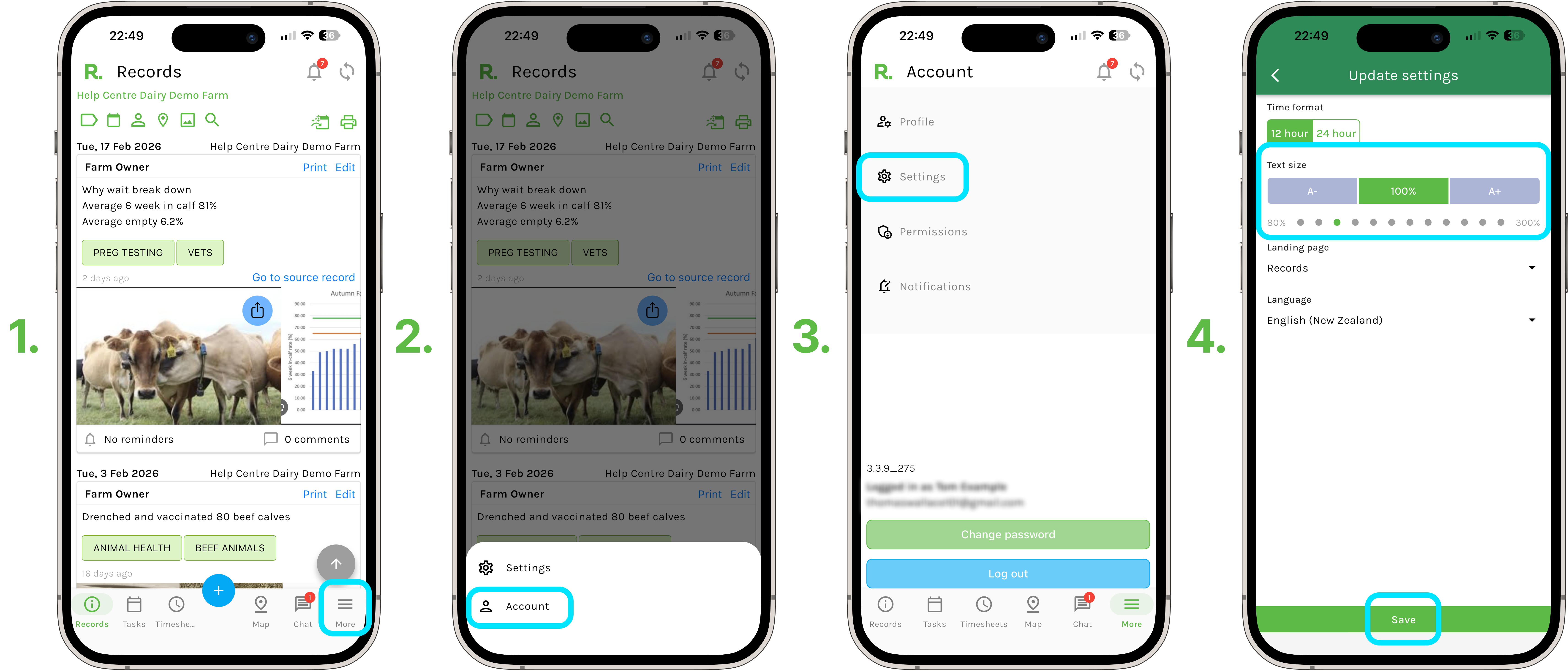
Steps to Change Text Size - Mobile

  1. Select ‘More’ in the bottom right hand corner of your screen.
  2. Select ‘Account’.
  3. Select ‘Settings’.
  4. Here you will see A-, a percentage, and A+
    1. Select A- for smaller text.
    2. Select A+ for larger text.
    3. The percentage in the middle will adjust with your changes, 100% is standard text size. Anything larger than 100% is a larger text, and less than 100% is smaller.
  5. Select ‘Save’, your app will now display all text in your selected size.


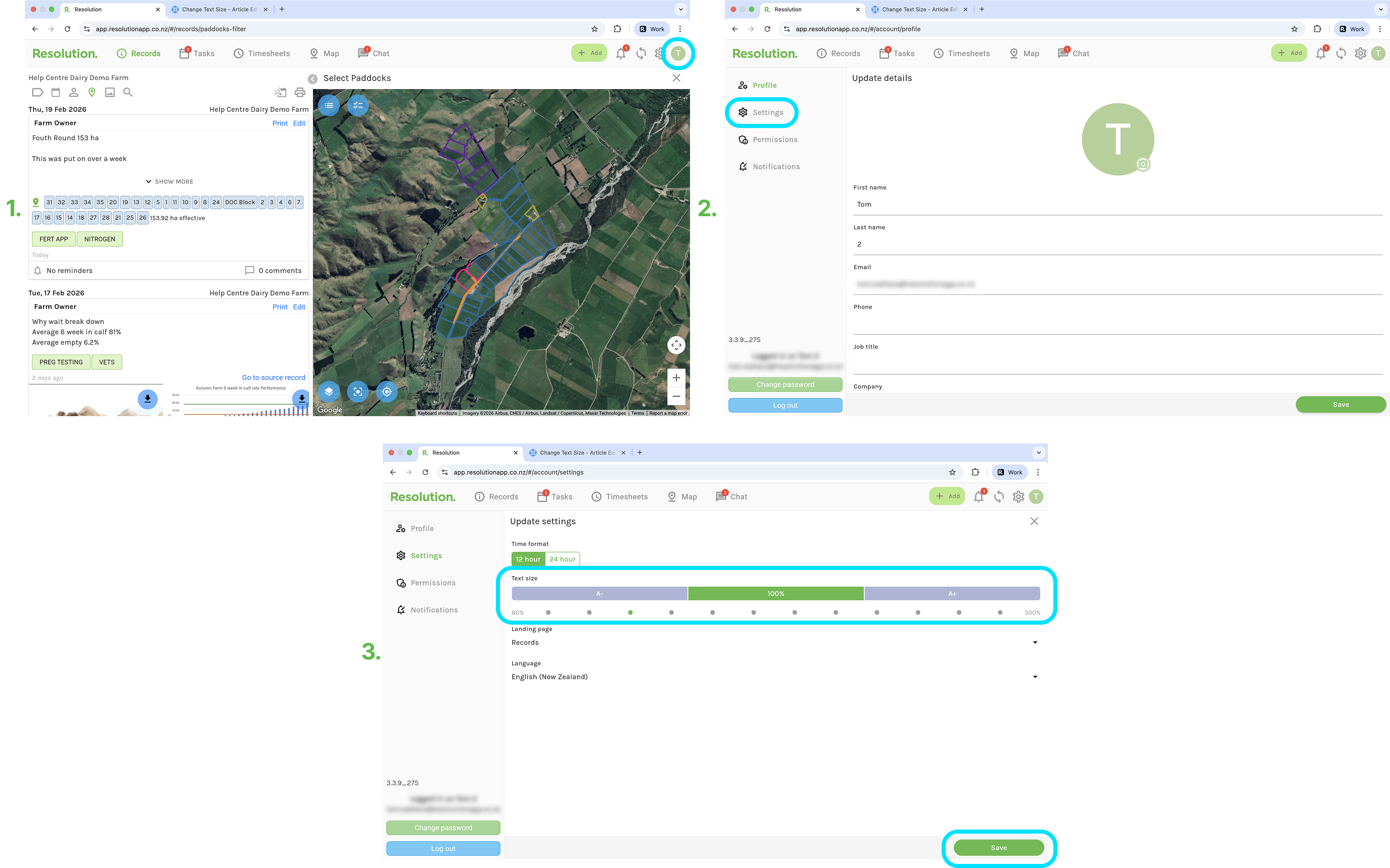
Steps to Change Text Size - Desktop

  1. Select ‘Account’ in the top right corner of your screen.
  2. Select ‘Settings’.
  3. Here you will see A-, a percentage, and A+
    1. Select A- for smaller text.
    2. Select A+ for larger text.
    3. The percentage in the middle will adjust with your changes, 100% is standard text size. Anything larger than 100% is a larger text, and less than 100% is smaller.
  4. Select ‘Save’, your desktop app will now display all text in your selected size.


Important Things to Note:

  • You can change the text size on your mobile app, and it will only save your changes to that local device - meaning that you can have different text size settings between your different devices.
  • Optimising the font size will depend largely on the screen size of your device. On smaller screens, adjusting the font size may impact functionality or the overall layout of the system.
     
text size font larger text accessibility preference

Was this article helpful?

Yes
No
Give feedback about this article

Related Articles

  • Change Account Settings
  • Change Account Details
  • Change Password
  • Forgotten Password

Copyright 2026 – Top Rail Limited | All rights reserved

Expand