If you are logged out of your account, and have forgotten your password - click Forgotten Password
Steps to Change Password - Mobile
- Select ‘More’ in the bottom right hand corner of your screen.
- Select ‘Account’.
- Select ‘Change password’.
- Enter your current password.
- Set your new password.
- Enter your new password again.
- Select ‘Save’.
NOTE: New password must be at least 6 characters long.
-1.png)
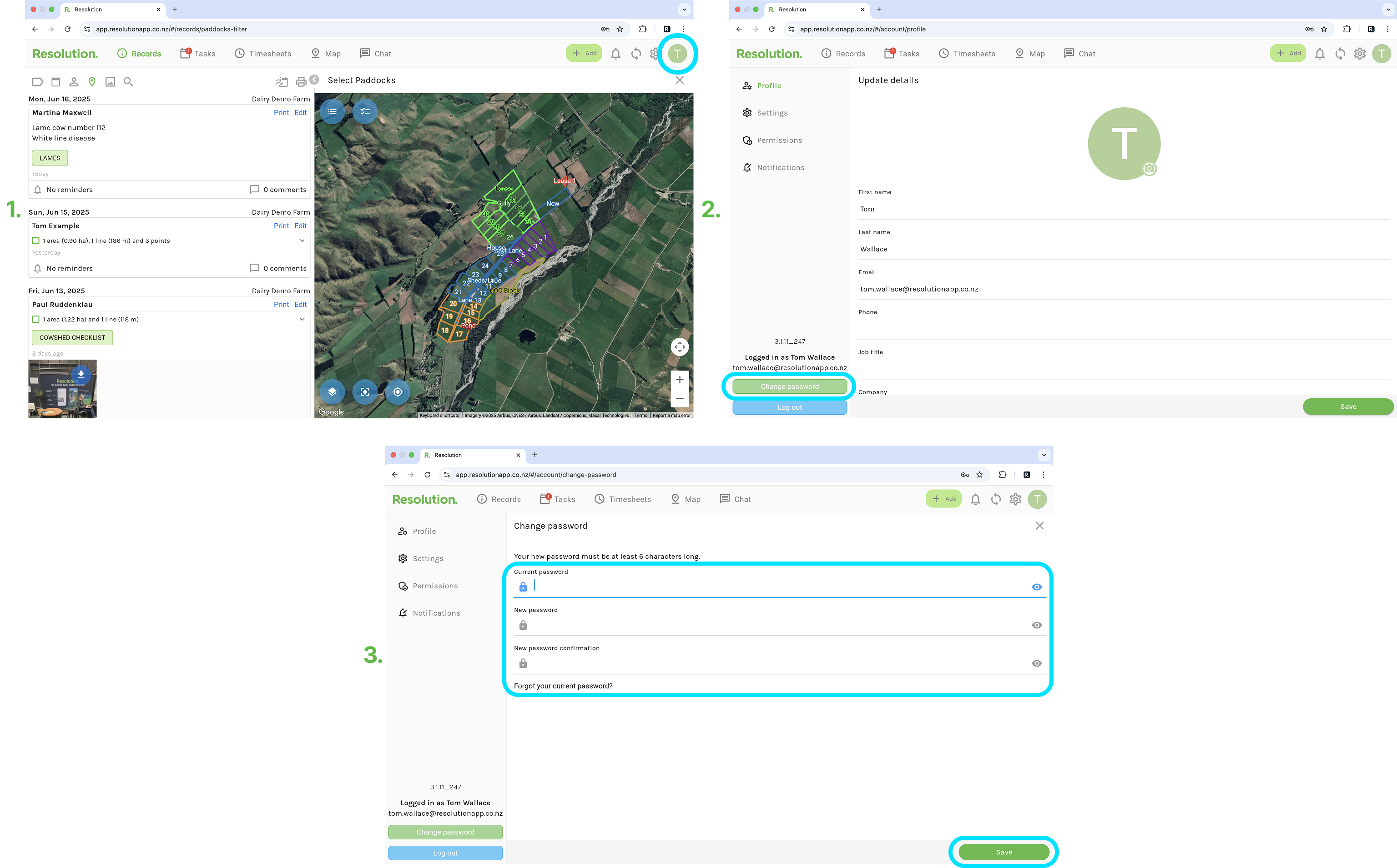
Steps to Change Password - Desktop
- Select ‘Account’ in the top right hand corner of your screen.
- Select ‘Change password’.
- Enter your current password.
- Set your new password.
- Enter your new password again.
- Select ‘Save’.
NOTE: New password must be at least 6 characters long.
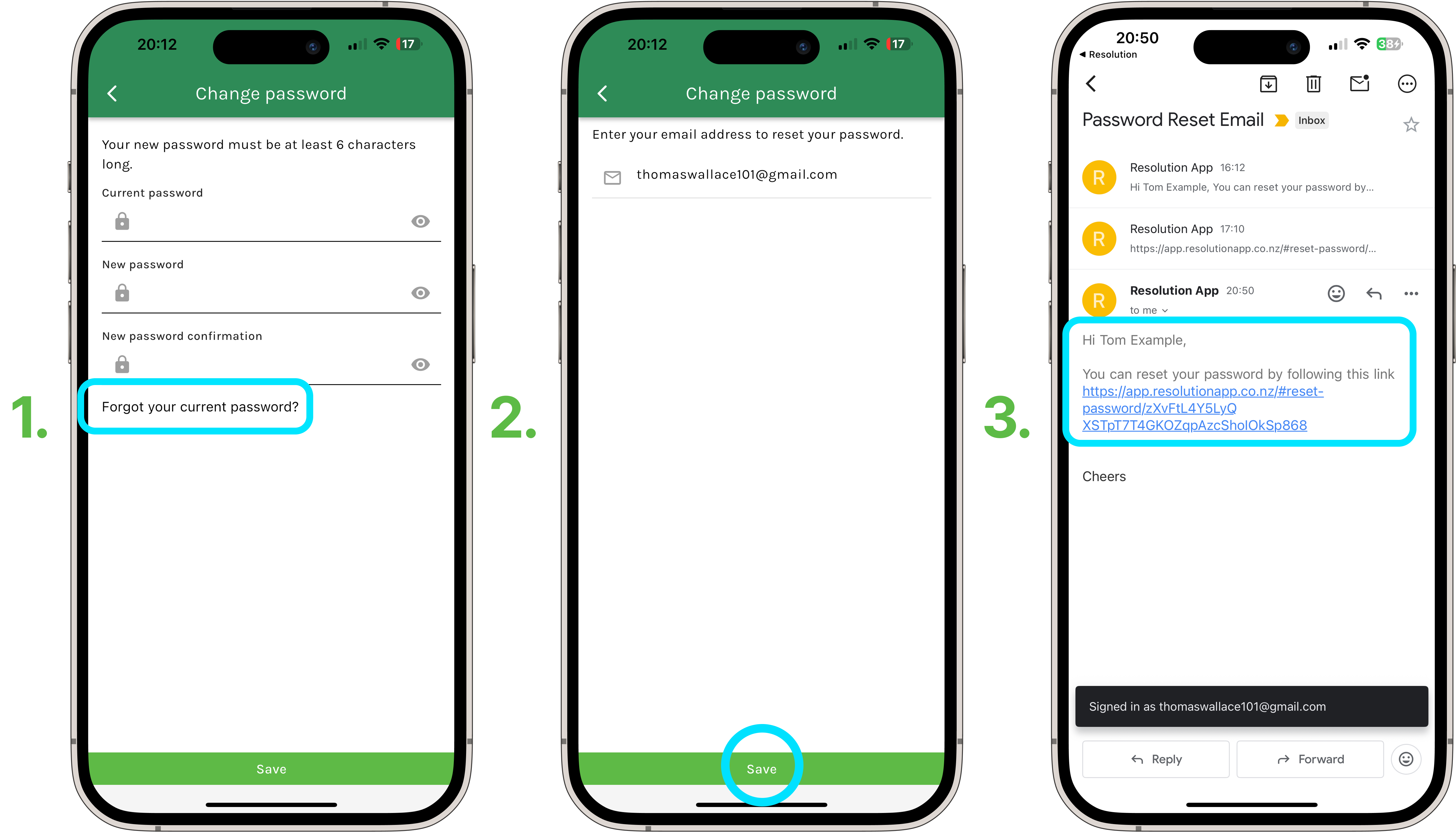
Logged In - But Forgotten Password
- If you are currently logged into your account, but can't remember your current password in order to change your password.
- On both mobile and desktop, from within the change password screen. Select ‘Forgot your current password?'.
- Ensure the correct email address to your account is entered.
- Select ‘Save’.
- Click the link in the email sent to you, and complete the instructions.