
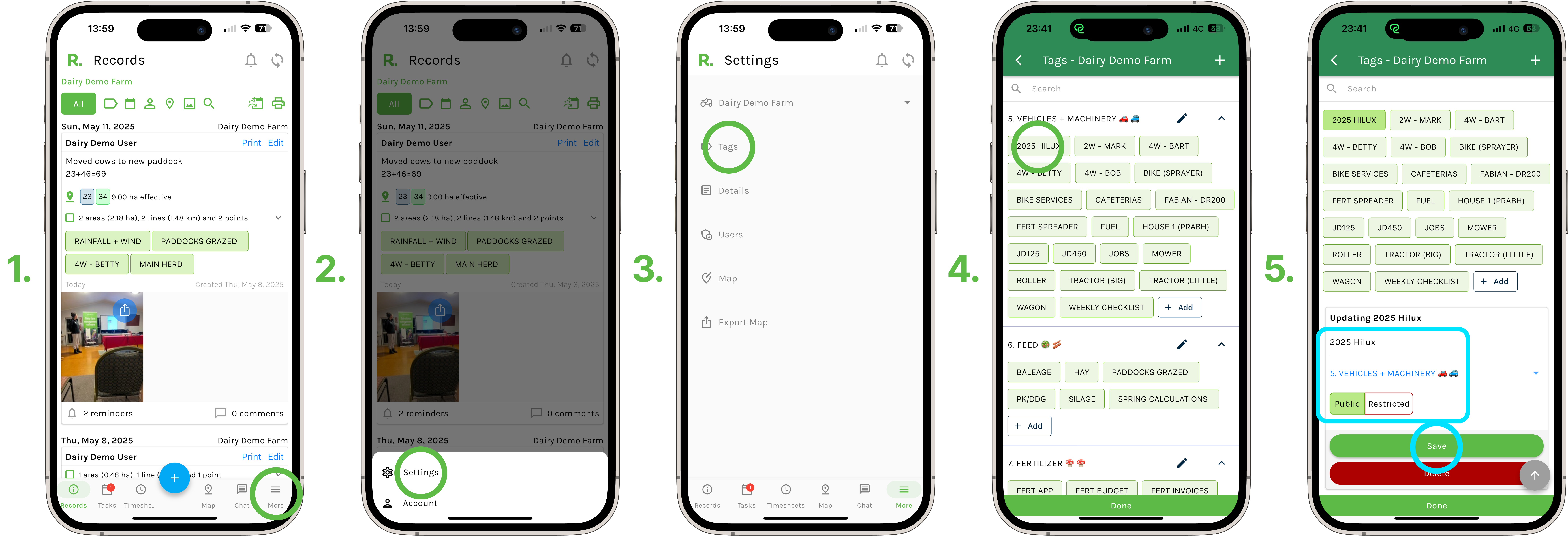
Steps to Edit a Tag - Mobile
- Select ‘more’ in the bottom right hand corner of your screen.
- Select ‘settings’.
- Navigate to the tags section
- Press the tag you wish to edit
- Here you can change the tag name, the tag category it sits under, and whether it's public or restricted.
- Save your newly edited tag.
- Your newly edited tag is now ready to use.
Steps to Edit a Tag - Desktop
- Select ‘settings’ in the top right hand corner of your screen
- Navigate to the tags section
- Click on the tag you wish to edit
- Here you can change the tag name, the tag category it sits under, and whether it's public or restricted.
- Save your newly edited tag.
- Your newly edited tag is now ready to use.

Best Practices
- Use clear, concise tag names
- Avoid duplicate tags
- Consider creating a consistent tagging strategy
NOTE: When you edit a tag, your records and data will auto automatically populate from the original tag to the newly edited one. You WILL NOT lose any records or data underneath the tag.
-1.png)