---
title: Archive / Activate Tags & Categories
description: Learn how to archive the tags and categories you no longer need, and re-activate them again if you ever need them back.
---
[Skip to content](https://support.resolutionapp.co.nz/tags/archive-activate-tags-and-categories#main-content)
English - New Zealand
Show submenu for translations
[](https://www.resolutionapp.co.nz/)
- [Home](https://www.resolutionapp.co.nz/)
- [About us](https://www.resolutionapp.co.nz/about-us)
- [Testimonials](https://www.resolutionapp.co.nz/testimonials)
- [Events](https://www.resolutionapp.co.nz/events)
- [Help Centre](https://support.resolutionapp.co.nz/)
- [Request a demo](https://www.resolutionapp.co.nz/pricing#request-demo)
Open main navigation
Close main navigation
- [Home](https://www.resolutionapp.co.nz/)
- [About us](https://www.resolutionapp.co.nz/about-us)
- [Testimonials](https://www.resolutionapp.co.nz/testimonials)
- [Events](https://www.resolutionapp.co.nz/events)
- [Help Centre](https://support.resolutionapp.co.nz/)
- [Request a demo](https://www.resolutionapp.co.nz/pricing#request-demo)
- English - New Zealand
Show submenu for translations
- [Login](https://app.resolutionapp.co.nz/)
[Login](https://app.resolutionapp.co.nz/)
How can we help you?
- There are no suggestions because the search field is empty.
1. [Resolution Help Centre](https://support.resolutionapp.co.nz/?hsLang=en-nz)
2. [Tags](https://support.resolutionapp.co.nz/tags?hsLang=en-nz)
# Archive / Activate Tags & Categories
## Learn how to archive the tags and categories you no longer need, and re-activate them again if you ever need them back.
### Available on Mobile and Desktop
- Everything in this article works the same way on mobile and desktop.
- You can archive and re-activate both tags and categories from the same Tags settings screen.
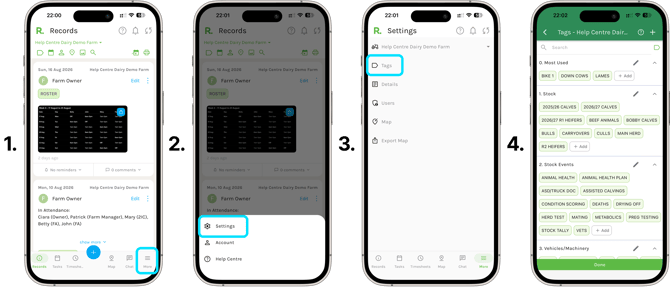
###  Getting to Tags Settings
**On Mobile -**
1. Select More in the bottom right of your screen.
2. Select Settings.
3. Select Tags.
4. Your tags open, grouped into their categories.
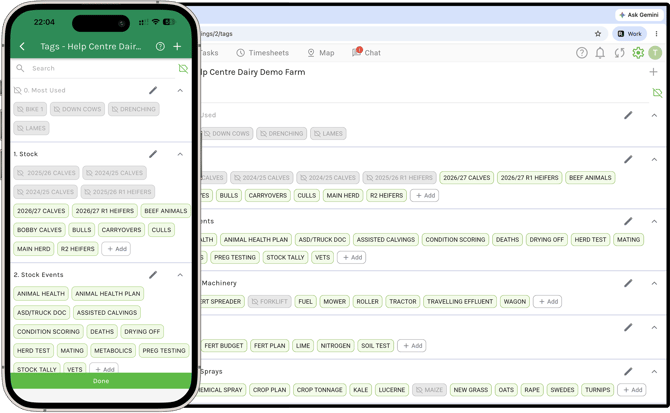
**On Desktop -**
1. Select the Farm Settings Icon on the top right of your screen.
2. Your tags open, grouped into their categories.
**NOTE:** If you have access to multiple farms, please ensure you are on the correct farm before making any changes.
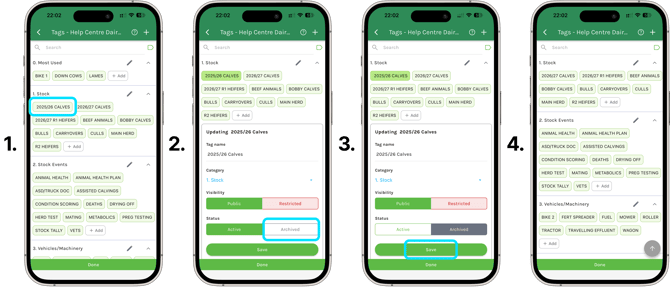
### Archiving a Tag
1. Select the tag you wish to archive.
2. In the Updating panel, go to Status and select Archived.
3. Select Save.
4. The tag is now hidden from everyday use.
**NOTE:** Other users will still be able to view archived tags and the information attached to them, if they wish. If you don't want them to, check out our tip below.
**Pro Tip:** The same Updating panel also has a Visibility setting - Public or Restricted. You don’t need to change this to archive the tag. However, if you don't want staff to be able to see this tag or the information attached to it, this is where you can change the visibility setting to Restricted (viewable only by those with Manage Permissions).
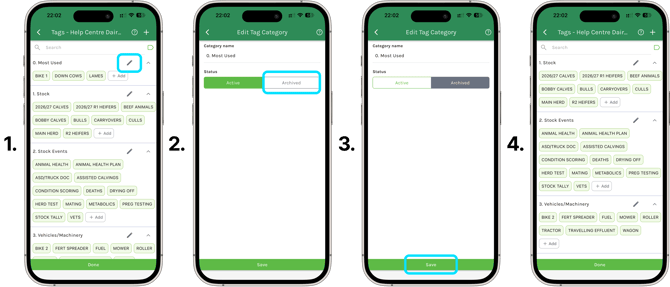
### Archiving a Category
1. Select the pencil icon next to the category you wish to archive.
2. Go to Status and select Archived.
3. Select Save.
**NOTE:** Archiving a category hides it, along with its tags, from everyday use.
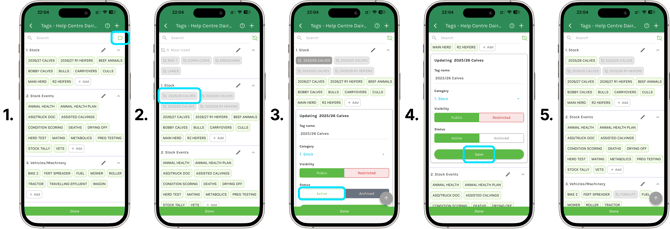
### Re-activating a Tag
1. Select the tag icon in the top right of the search bar to show archived tags. **Archived tags appear greyed out.**
2. Select the archived tag you wish to bring back/re-activate.
3. In the Updating panel, go to Status and select Active.
4. Select Save.
**NOTE:** The Visibility setting - Public or Restricted - sits in the same panel, so you can check or update whether the tag is public or restricted as you re-activate it.
### Re-activating a Category
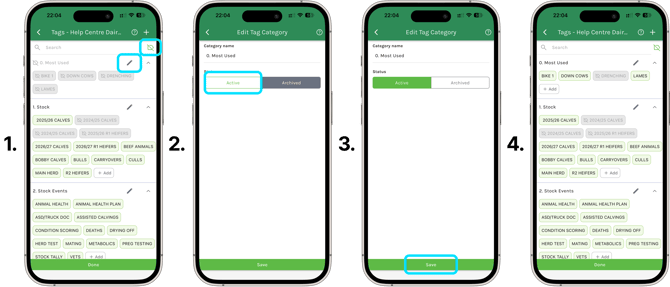
1. Select the tag icon in the top right of the search bar to show archived categories. **Archived categories appear greyed out.**
2. Select the pencil icon next to the archived category you wish to bring back/re-activate.
3. On the Edit Tag Category screen, go to Status and select Active.
4. Select Save.
### Additional Info
- Archived tags and categories stay in the background and can be re-activated at any time.
- Archiving hides a tag or category without deleting it, so your records and tasks keep their full history. Check out our video linked below to learn how to filter your Records and Tasks by archived tags.
### Related Articles
1. [Creating Tags](https://support.resolutionapp.co.nz/tags/creating-tags?hsLang=en-nz)
2. [Creating Tag Categories](https://support.resolutionapp.co.nz/tags/creating-tag-categories?hsLang=en-nz)
3. [Editing Tags](https://support.resolutionapp.co.nz/tags/editing-tags?hsLang=en-nz)
4. [Filter using Archived Tags](https://support.resolutionapp.co.nz/tips-tricks/filter-by-archived-tags?hsLang=en-nz)
- [Getting started](https://support.resolutionapp.co.nz/getting-started?hsLang=en-nz)
- [Base Map](https://support.resolutionapp.co.nz/base-map?hsLang=en-nz#main-content)
- [Farm Base Map Editor](https://support.resolutionapp.co.nz/base-map?hsLang=en-nz#farm-base-map-editor)
- [Export Map](https://support.resolutionapp.co.nz/base-map?hsLang=en-nz#export-map)
- [Settings](https://support.resolutionapp.co.nz/settings?hsLang=en-nz#main-content)
- [User Settings](https://support.resolutionapp.co.nz/settings?hsLang=en-nz#user-settings)
- [Notifications](https://support.resolutionapp.co.nz/settings?hsLang=en-nz#notifications)
- [Account Settings](https://support.resolutionapp.co.nz/settings?hsLang=en-nz#account-settings)
- [Farm Settings](https://support.resolutionapp.co.nz/settings?hsLang=en-nz#farm-settings)
- [Tags](https://support.resolutionapp.co.nz/tags?hsLang=en-nz)
- [Records](https://support.resolutionapp.co.nz/records?hsLang=en-nz)
- [Tasks](https://support.resolutionapp.co.nz/tasks?hsLang=en-nz)
- [Map Layers](https://support.resolutionapp.co.nz/map-layers?hsLang=en-nz)
- [Timesheets](https://support.resolutionapp.co.nz/timesheets?hsLang=en-nz)
- [Chat](https://support.resolutionapp.co.nz/chat?hsLang=en-nz)
- [Tips & Tricks](https://support.resolutionapp.co.nz/tips-tricks?hsLang=en-nz)
- [Contact Support](https://www.resolutionapp.co.nz/support)
[](http://resolutionapp.co.nz)
Copyright 2026 - Top Rail Limited | All rights reserved
×