
A photo marker is one of the point types you can add to a map layer. The other options are covered in another video.
Available on Mobile and Desktop
-
You can add points to map layers on both records and tasks.
-
Everything in this article works the same way on both mobile and desktop.
.png?width=670&height=384&name=1%20Create%20Points%20Mobile%20Desktop%20(1).png)
Creating a Point
-
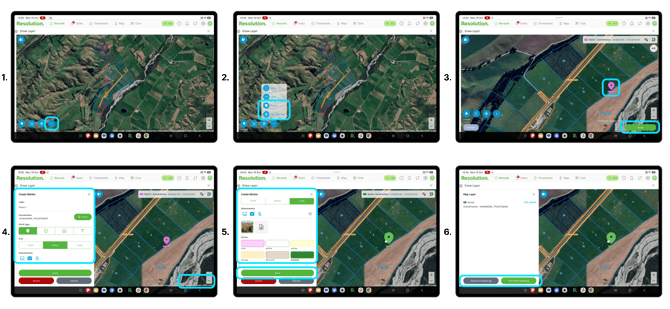
Select the blue plus icon to see the list of map layer tools.
-
Select Point to place your point manually, or My location to place it where you currently are.
-
Place your point on the map, then select Done.
-
The sidebar opens automatically, ready for you to add your details.
Labelling Your Point
-
Under label, type a label or name for your point.
- Select Done.
.png?width=670&height=155&name=1%20Photo(1).png)
Choosing the Photo Marker and Its Size
-
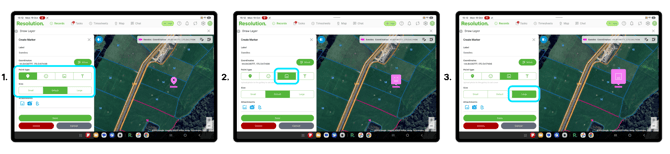
Under Point type, select the photo icon.
-
Under Size, select Small, Default or Large.
Pro Tip: A photo marker is useful for monitoring crop change over time, or adding hazard photos to your hazard map.
Adding Photos
-
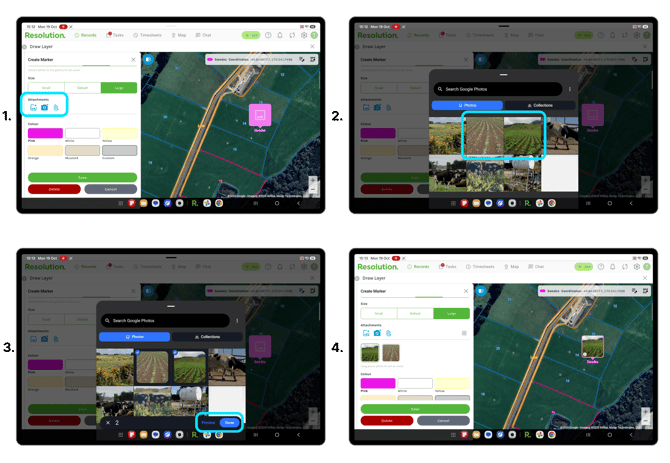
Under Attachments, select the gallery or camera icon.
-
Choose or take one or more photos, then select Done.
-
Your photos appear under Attachments, and your marker on the map now shows a photo.
NOTE: You can also select the paperclip icon to add other files as attachments such as videos and pdfs.
Setting the Cover Photo
-
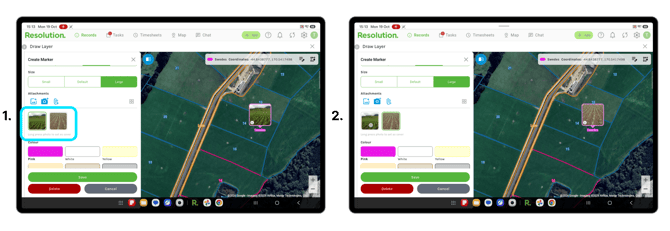
Long press the photo you want to use as the cover.
-
The marker on your map updates to show that photo.
Adding a Description and Date
-
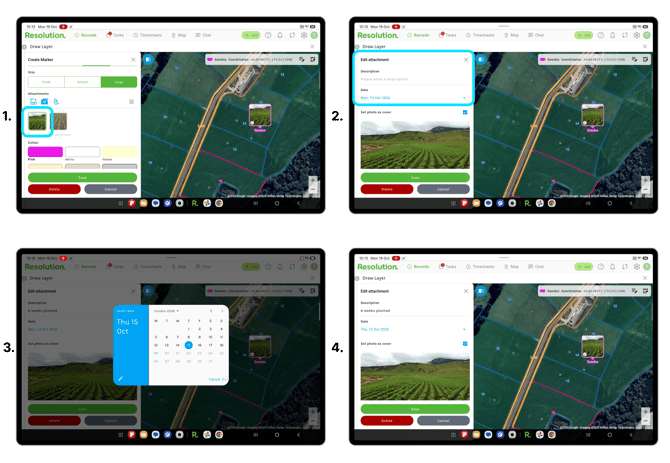
Click on one of the Attachments.
-
In the Edit attachment panel, you can add a description and date.
-
Select Save.
NOTE: You can add a different description and date to each attachment if you wish.
Pro Tip: This is really useful for tracking crop progress and growth over time.
Choosing a Background Colour
-
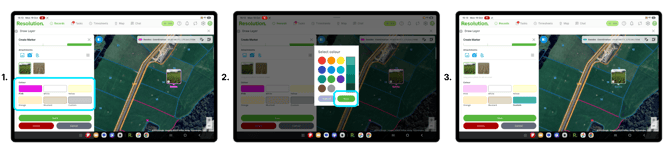
Under Colour, choose a background colour for your photo marker.
NOTE: There are five colours to choose from or for a larger selection, select Custom.
Saving Your Photo Marker
-
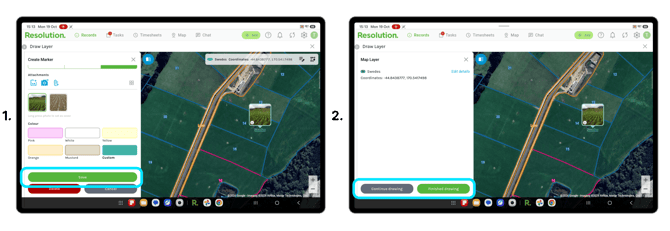
When you are happy, select Save.
-
Select Continue drawing to add more to your map layer, or Finished drawing to return to your record or task.
NOTE: Your photo marker now appears on your map layer. If it has attachments, a paperclip shows in the bottom left corner.
Extra Info
-
Add new photos to the same marker over time to build a visual record of how a crop is progressing.
-
Use the description and date on each photo to keep track of what changed and when.