---
title: Add a Pin to a Map Layer
description: Learn how to place a pin on your map layer, either manually or at your current location, and add a label, attachments and colour.
---
[Skip to content](https://support.resolutionapp.co.nz/map-layers/add-a-pin-to-a-map-layer#main-content)
English - New Zealand
Show submenu for translations
[](https://www.resolutionapp.co.nz/)
- [Home](https://www.resolutionapp.co.nz/)
- [About us](https://www.resolutionapp.co.nz/about-us)
- [Testimonials](https://www.resolutionapp.co.nz/testimonials)
- [Events](https://www.resolutionapp.co.nz/events)
- [Help Centre](https://support.resolutionapp.co.nz/)
- [Request a demo](https://www.resolutionapp.co.nz/pricing#request-demo)
Open main navigation
Close main navigation
- [Home](https://www.resolutionapp.co.nz/)
- [About us](https://www.resolutionapp.co.nz/about-us)
- [Testimonials](https://www.resolutionapp.co.nz/testimonials)
- [Events](https://www.resolutionapp.co.nz/events)
- [Help Centre](https://support.resolutionapp.co.nz/)
- [Request a demo](https://www.resolutionapp.co.nz/pricing#request-demo)
- English - New Zealand
Show submenu for translations
- [Login](https://app.resolutionapp.co.nz/)
[Login](https://app.resolutionapp.co.nz/)
How can we help you?
- There are no suggestions because the search field is empty.
1. [Resolution Help Centre](https://support.resolutionapp.co.nz/?hsLang=en-nz)
2. [Map Layers](https://support.resolutionapp.co.nz/map-layers?hsLang=en-nz)
# Add a Pin to a Map Layer
## Learn how to place a pin on your map layer, either manually or at your current location, and add a label, attachments and colour.
A pin is one of the point types you can add to a map layer. The other options are covered in another video.
### Available on Mobile and Desktop
- You can add points to map layers on both records and tasks.
- Everything in this article works the same way on both mobile and desktop.
.png?width=670&height=384&name=1%20Create%20Points%20Mobile%20Desktop%20(1).png)
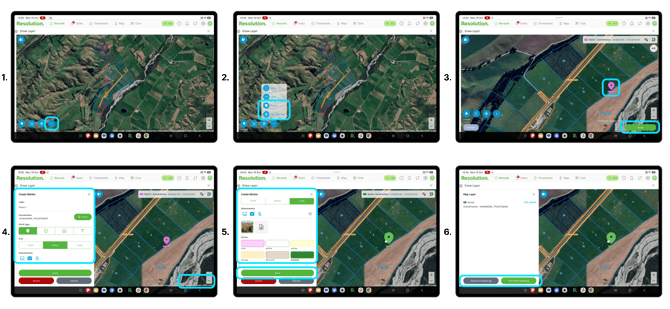
### Creating a Point
1. Select the blue plus icon to see the list of map layer tools.
2. Select Point to place your point manually, or My location to place it where you currently are.
3. Place your point on the map, then select Done.
4. The sidebar opens automatically, ready for you to add your details.
### Labelling Your Point
1. Under label, type a label or name for your point.
2. Select Done.
.png?width=670&height=155&name=1%20Photo(1).png)
### Choosing the Pin and Its Size
1. Under Point type, the pin is automatically selected for you.
2. Under Size, select Small, Default or Large.
**Pro Tip:** A pin is useful for marking things such as weeds, broken fence posts or insulators.
**.png?width=670&height=232&name=2%20Point(1).png)**
### Adding Attachments
Under Attachments you have three options:
1. Select the gallery icon to add photos from your gallery.
2. Select the camera icon to take a photo.
3. Select the paperclip icon to add a file, such as a video or pdf.
**.png?width=670&height=310&name=3%20Point(1).png)**
### Adding a Description and Date
1. Click on one of the Attachments.
2. In the Edit attachment panel, you can add a description and date.
3. Select Save.
**NOTE:** You can add a different description and date to each attachment if you wish.
.png?width=670&height=232&name=4%20Point(1).png)
### Choosing a Colour
- Under Colour, choose the colour for your pin.
**NOTE:** There are five colours to choose from or for a larger selection, select Custom.
**.png?width=670&height=155&name=5%20point(1).png)**
### Saving Your Pin
1. When you are happy, select Save.
2. Select Continue drawing to add more to your map layer, or Finished drawing to return to your record or task.
**NOTE:** Your pin now appears on your map layer. If it has attachments, a paperclip shows in the bottom left of the pin.
**.png?width=670&height=232&name=6%20Point(1).png)**
### Related Articles
1. [Create & Edit an Area on a Map Layer](https://support.resolutionapp.co.nz/map-layers/create-and-edit-an-area?hsLang=en-nz)
2. [Create & Edit a Line on a Map Layer](https://support.resolutionapp.co.nz/map-layer/create-and-edit-a-line-on-a-map-layer?hsLang=en-nz)
3. [Add a Photo to a Map Layer](https://support.resolutionapp.co.nz/map-layers/add-a-photo-to-a-map-layer?hsLang=en-nz)
4. [Add Text to a Map Layer](https://support.resolutionapp.co.nz/map-layers/add-text-to-a-map-layer?hsLang=en-nz)
- [Getting started](https://support.resolutionapp.co.nz/getting-started?hsLang=en-nz)
- [Base Map](https://support.resolutionapp.co.nz/base-map?hsLang=en-nz#main-content)
- [Farm Base Map Editor](https://support.resolutionapp.co.nz/base-map?hsLang=en-nz#farm-base-map-editor)
- [Export Map](https://support.resolutionapp.co.nz/base-map?hsLang=en-nz#export-map)
- [Settings](https://support.resolutionapp.co.nz/settings?hsLang=en-nz#main-content)
- [User Settings](https://support.resolutionapp.co.nz/settings?hsLang=en-nz#user-settings)
- [Notifications](https://support.resolutionapp.co.nz/settings?hsLang=en-nz#notifications)
- [Account Settings](https://support.resolutionapp.co.nz/settings?hsLang=en-nz#account-settings)
- [Farm Settings](https://support.resolutionapp.co.nz/settings?hsLang=en-nz#farm-settings)
- [Tags](https://support.resolutionapp.co.nz/tags?hsLang=en-nz)
- [Records](https://support.resolutionapp.co.nz/records?hsLang=en-nz)
- [Tasks](https://support.resolutionapp.co.nz/tasks?hsLang=en-nz)
- [Map Layers](https://support.resolutionapp.co.nz/map-layers?hsLang=en-nz)
- [Timesheets](https://support.resolutionapp.co.nz/timesheets?hsLang=en-nz)
- [Chat](https://support.resolutionapp.co.nz/chat?hsLang=en-nz)
- [Tips & Tricks](https://support.resolutionapp.co.nz/tips-tricks?hsLang=en-nz)
- [Contact Support](https://www.resolutionapp.co.nz/support)
[](http://resolutionapp.co.nz)
Copyright 2026 - Top Rail Limited | All rights reserved
×