
Contact Us

If you still have questions or prefer to get help directly from our support team, please contact support below.

Contact Support
  • Home
  • Pricing
  • About
  • Support
English (US)
US English (US)
GB English (UK)
  • Home
  • Tips & Tricks

Long Press / Double Clicking Tags and Paddocks

Learn about how you can long press (mobile) and double click (desktop) on tags and paddocks to quickly add them as a filter.

Written by Thomas Wallace

Updated at February 5th, 2026

Contact Us

If you still have questions or prefer to get help directly from our support team, please contact support below.

Contact Support
  • Getting Started
    Welcome Email and First Logging In Basic App Navigation Logging In as a New User
  • Base Map
    Farm Base Map Editor Export Map
  • Settings
    User Settings Notifications Account Settings Farm Settings
  • Tags
    Creating Tags Creating Tag Categories Editing Tags Deleting Tags Public vs Restricted Tags
  • Records
    Create a Record Edit a Record Copy a Record Delete Records Transfer Record to a Task Copy Records and Tasks to Another Farm How to Add a Reminder to a Record Commenting on Records How to Create Reports and Print them
  • Tasks
    Create a Task Edit a Task Copy a Task Transfer Task to a Record Complete Tasks Delete a Task How to Add a Reminder to a Task Commenting on Tasks How to Create Reports and Print them Copy Tasks and Records to Another Farm
  • Map Layers
    Create Basic Map Layers Edit Map Layers
  • Timesheets
    How to Create a Timesheet How to Approve Timesheets How to Generate Timesheet Reports
  • Chat
    Chat Full Walkthrough Getting Started with Chat Chat Permissions Create New Chats Basic Chat Functions Chat Reactions Attach Records / Tasks to Chat and How to Create Records / Tasks from Chat How to Edit, Leave, Archive and Unarchive Chats
  • Tips & Tricks
    Navigate Between Multiple Farms How to Quick Search when Filtering by Tags Match All Tags vs Match Any Tag Long Press / Double Clicking Tags and Paddocks Using the Filter by Date Function - Calendar Icon How to Search for Keywords and Numbers How to Use Jump to Date Filter How to Print Farm Map
+ More

Learn about how you can long press (mobile) and double click (desktop) on tags and paddocks to quickly add them as a filter.


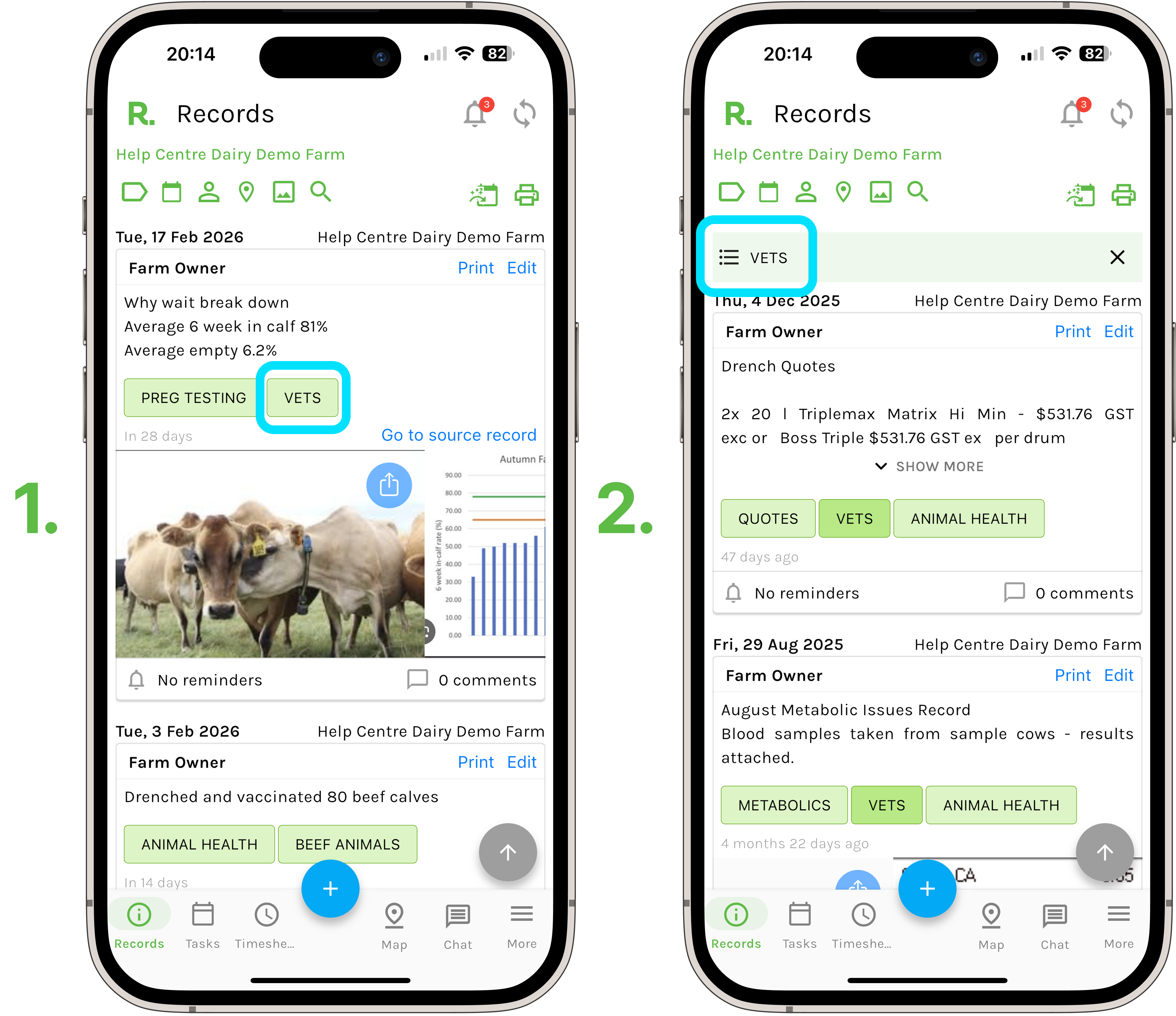
Long Press Tags and Paddocks - Mobile

  • From your records or tasks page, you can press and hold on tags and paddocks, when they appear on the timeline, to add them as a filter.
  • Identify the tag or paddock you wish to filter the timeline by when it appears.
  • Press and hold to add it as a filter.
  • Your timeline will now be narrowed down to only show records/ tasks that have the filter applied.
  • Quick Tip - You can repeat this process to unselect the tag or paddock. Or select the “X” on the green filter bar to remove all filters at once.


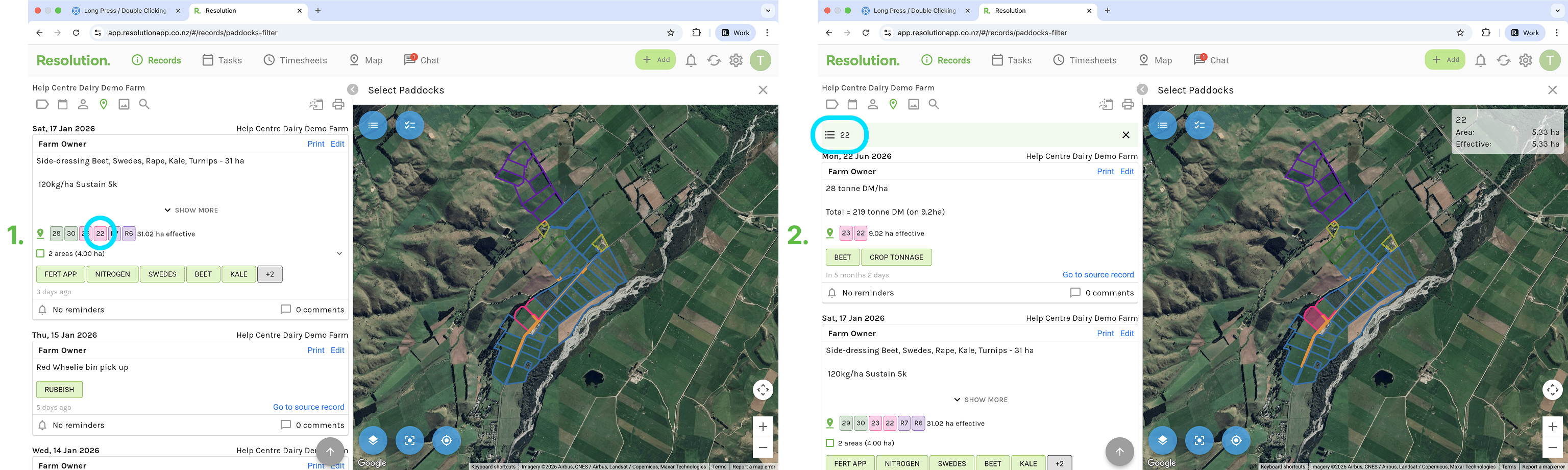
Double Click Tags and Paddocks - Desktop

  • From your records or tasks page, you can double click on tags and paddocks when they appear on the timeline, to add them as a filter.
  • Identify the tag or paddock you wish to filter the timeline by when it appears.
  • Double Click to add it as a filter.
  • Your timeline will now be narrowed down to only show records/ tasks that have the filter applied.
  • Quick Tip - You can repeat this process to unselect the tag or paddock. Or select the “X” on the green filter bar to remove all filters at once.


  • This feature works the same across the records and tasks page.
  • On mobile, you have to press and hold. On desktop you have to double click.
markers gestures

Was this article helpful?

Yes
No
Give feedback about this article

Related Articles

  • Creating Tags
  • Editing Tags
  • Match All Tags vs Match Any Tag
  • How to Quick Search when Filtering by Tags

Copyright 2026 – Top Rail Limited | All rights reserved

Expand