
Adding a Live Link to a Record or Task
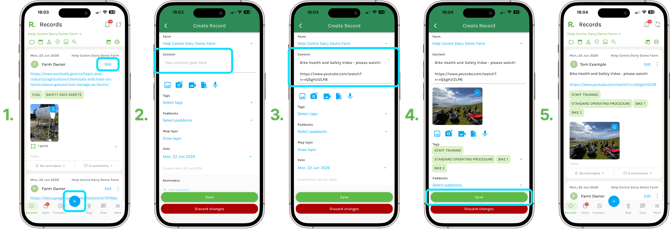
- Create a new record or task by selecting the plus icon, or find an existing one and select Edit.
- In the Content box, type or paste your link alongside any notes or instructions you want to include.
- Add any other details you need — attachments, tags, assignees, paddocks or map layers.
- Select Save. Your link now appears on the record or task, ready to use.
NOTE: You can add as many links as you need, and edit or remove them at any time by selecting Edit.
Adding a Live Link in Chat
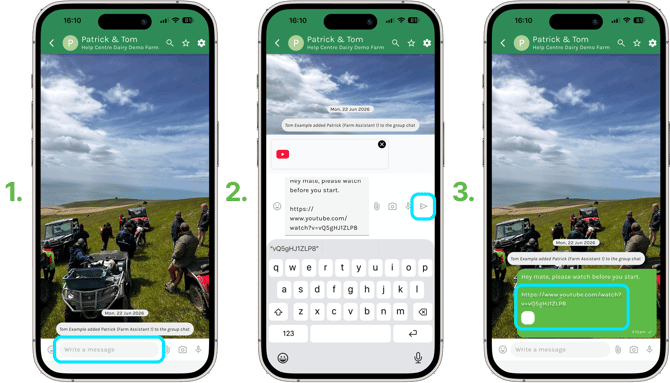
- Open the chat you want to add a link to and select the Write a message bar.
- Type or paste your link alongside any message you would like to send.
- Select the send icon. Your link now appears in the chat, ready to use.
Opening a Live Link
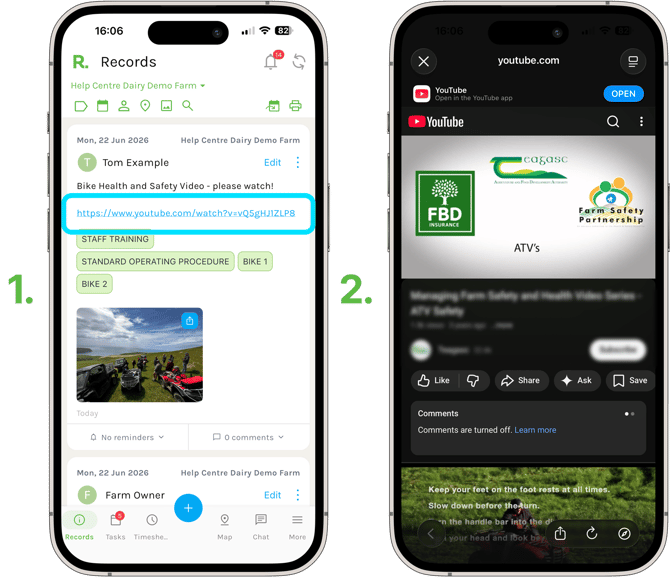
- When you or your team open a record, task or chat, you will see the link.
- Select the link to be taken straight to the live document or website.
What You Can Use Live Links For
-
Third party resources like Google Drive documents
-
Website logins
-
Industry resources like training videos, live inventories and safety data sheets