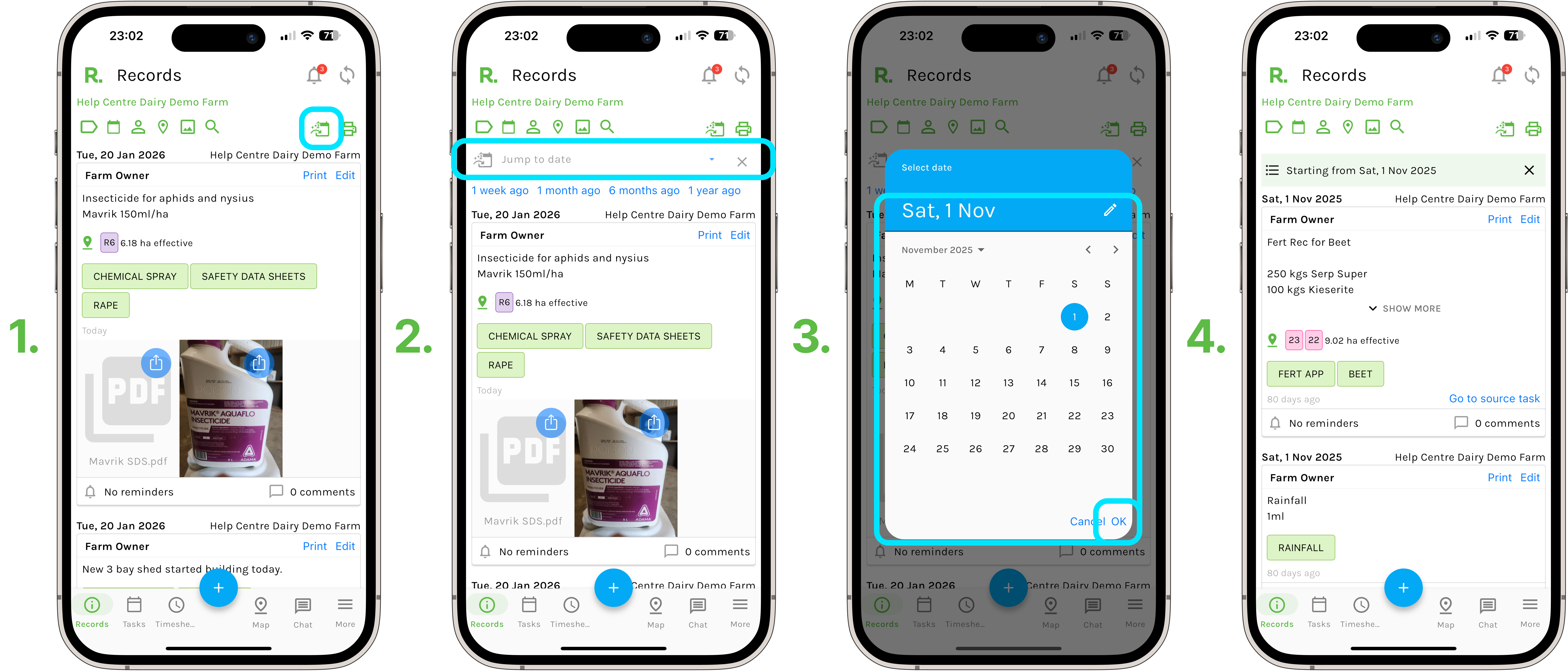
How to Use Jump to Date - Mobile
- From the records, tasks or timesheets page. Select the calendar icon with an arrow ‘Jump to Date’.
- To select a custom date, use the dropdown calendar to select a date.
- Or, you can select from a preset date (1 week ago, 1 month ago, 6 months ago, or 1 year ago).
- The timeline will then jump to your selected date, from here you can scroll the timeline up or down from here.
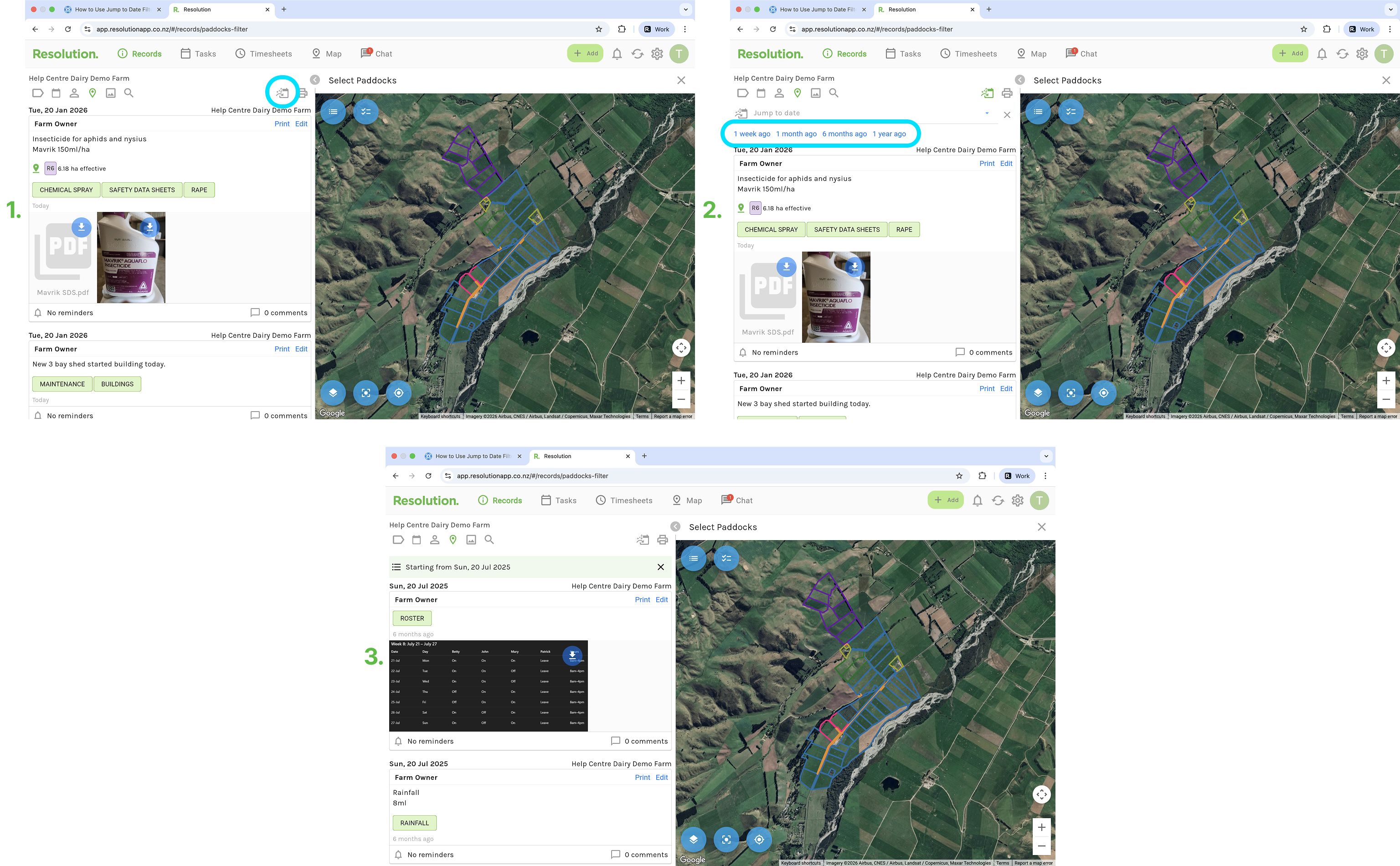
How to Use Jump to Date - Desktop
- From the records, tasks or timesheets page. Select the calendar icon with an arrow ‘Jump to Date’.
- To select a custom date, use the dropdown calendar to select a date.
- Or, you can select from a preset date (1 week ago, 1 month ago, 6 months ago, or 1 year ago).
- The timeline will then jump to your selected date, from here you can scroll the timeline up or down from here.