
Steps to Search for Keywords / Numbers - Mobile
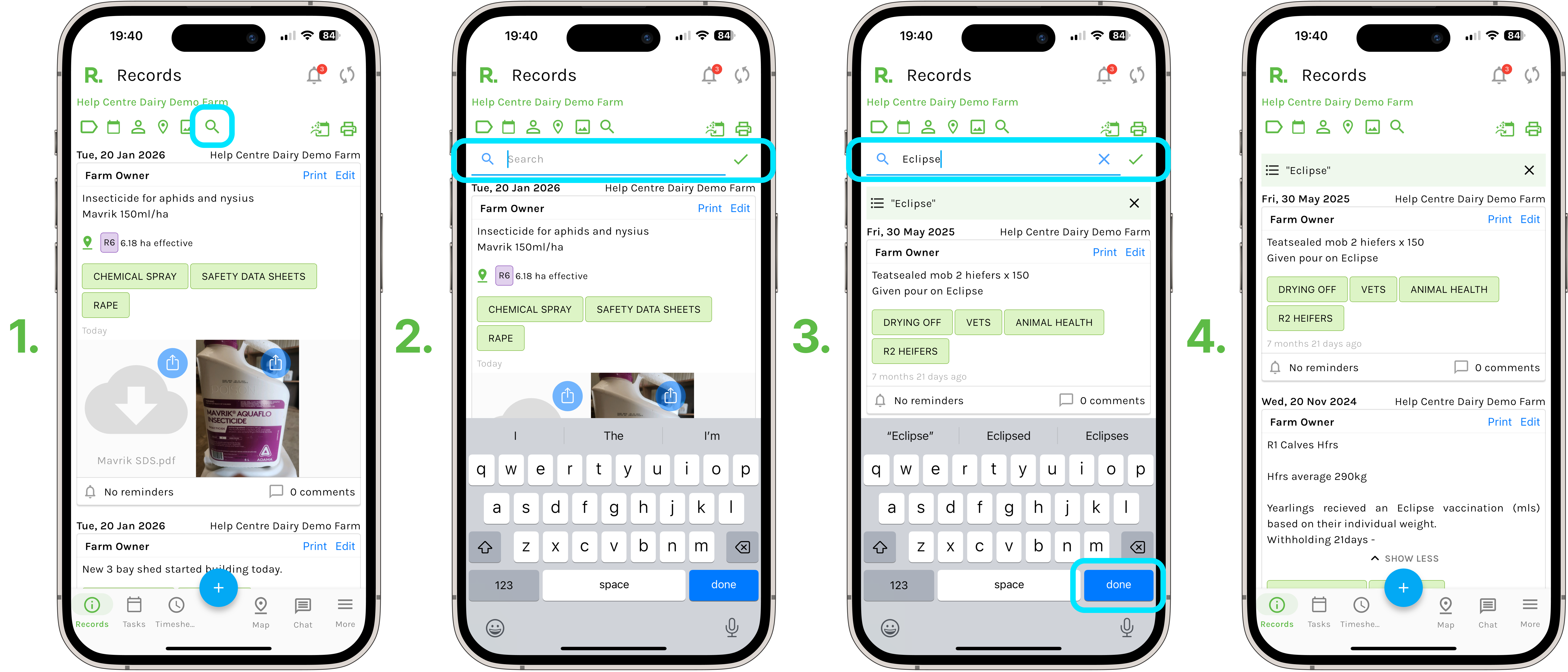
- From the records, tasks or timesheets page, select the magnifying glass icon / search button.
- Type in your keyword or number that would be found in the record or task description / content box.
- For example, you can search for a product name, and all records/ tasks that contain that keyword in the description will now be displayed.
Steps to Search for Keywords / Numbers - Desktop
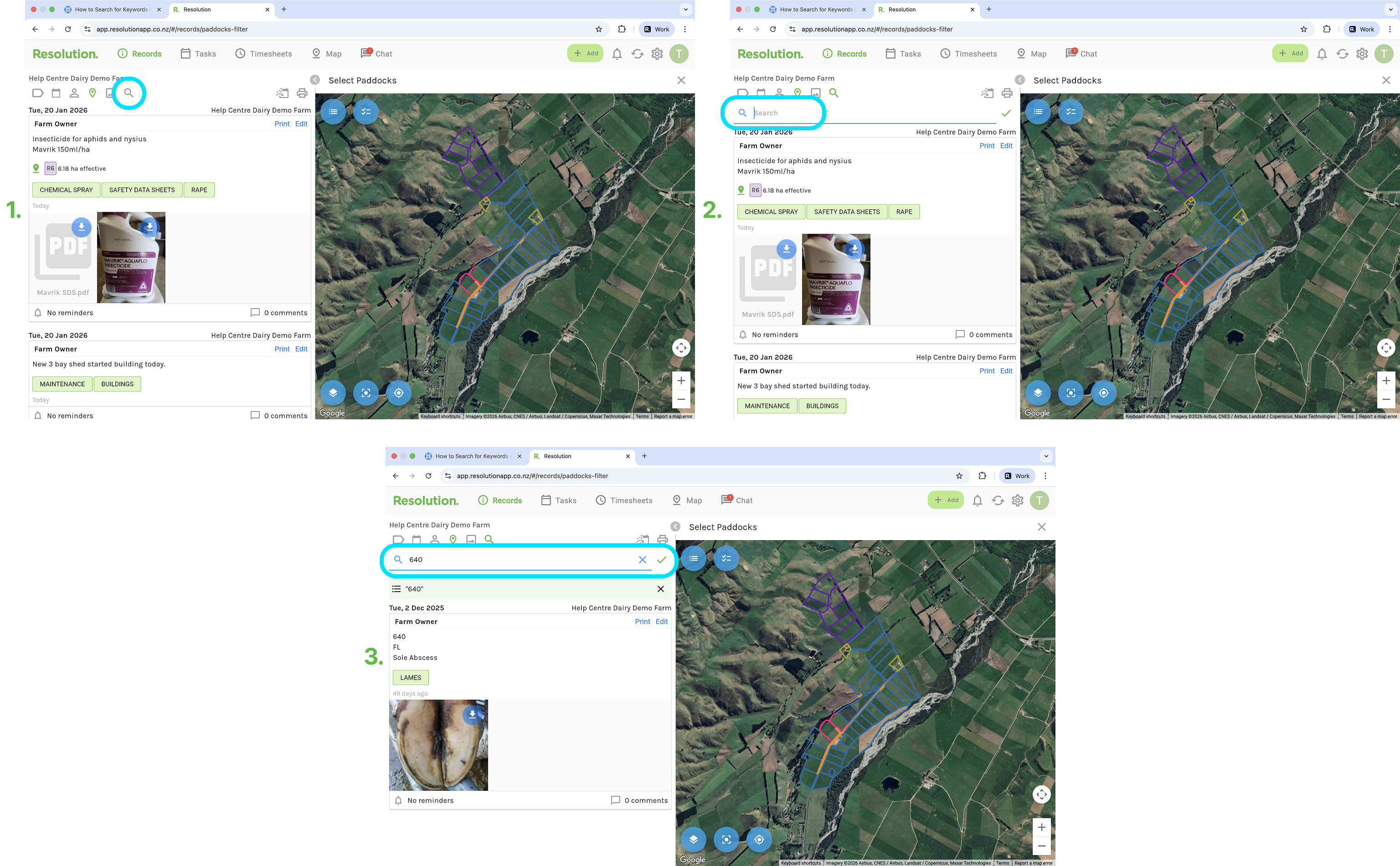
- From the records, tasks or timesheets page, select the magnifying glass icon / search button.
- Type in your keyword or number that would be found in the record or task description.
- For example, you can search for an animal ID number, and all records/ tasks that contain that keyword in the description will now be displayed.
This search function works the same for the records, tasks and timesheets pages.