How to Print Farm Map - Desktop
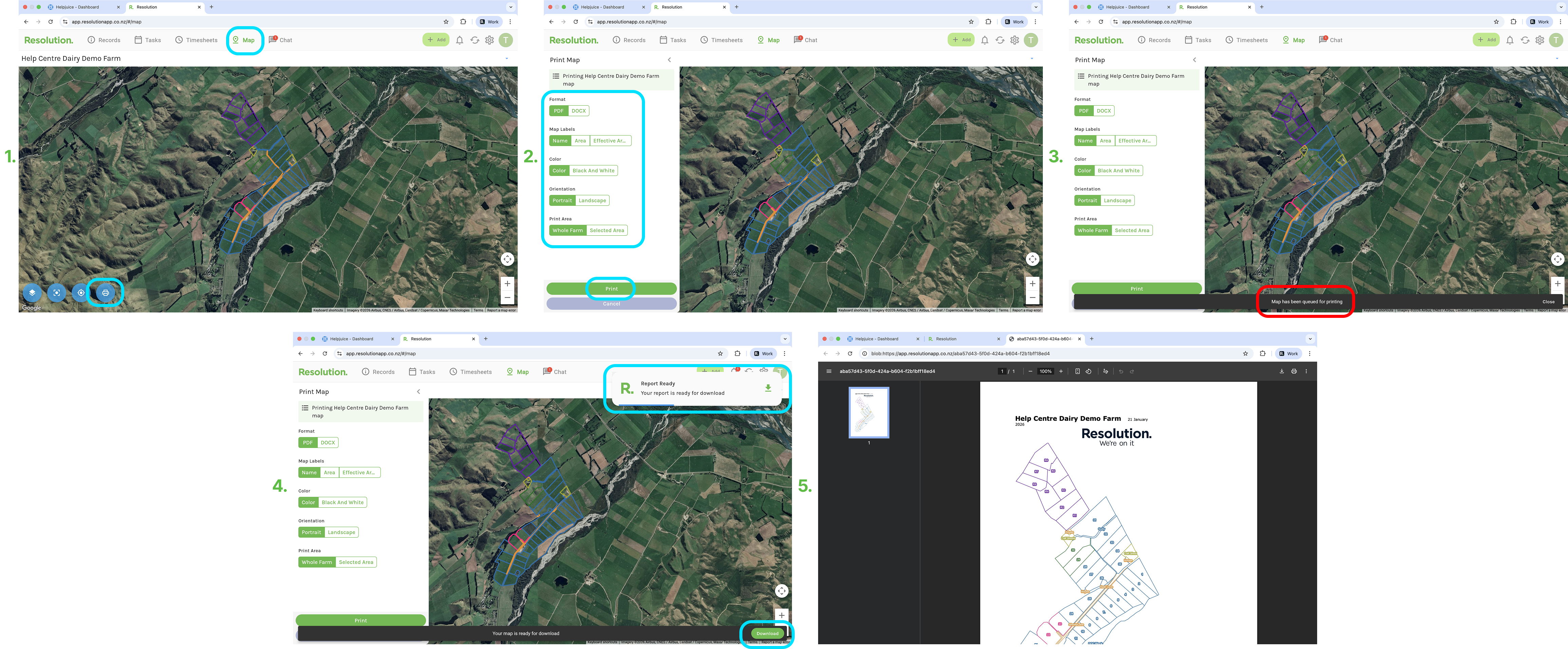
- Go to your Map page.
- Down the bottom, select the blue print button.
- Select from the options -
- Format: Choose from PDF or Word document
- Map labels: Toggle on and off which map labels you would like printed on the map (Name, Area and/or Effective Area)
- Colour: Choose between Colour or Black and White.
- Orientation: Choose how you would like your map to be printed - Portrait or Landscape.
- Print Area:
- ‘Whole Farm’ will print exactly how to map appears on your screen to your right.
- ‘Selected Area’ will allow you to select a specific area to print. You can zoom in on the map to customise this. The highlighted area is what will be printed.
- Select ‘Print’.
- Your map will now be queued for printing.
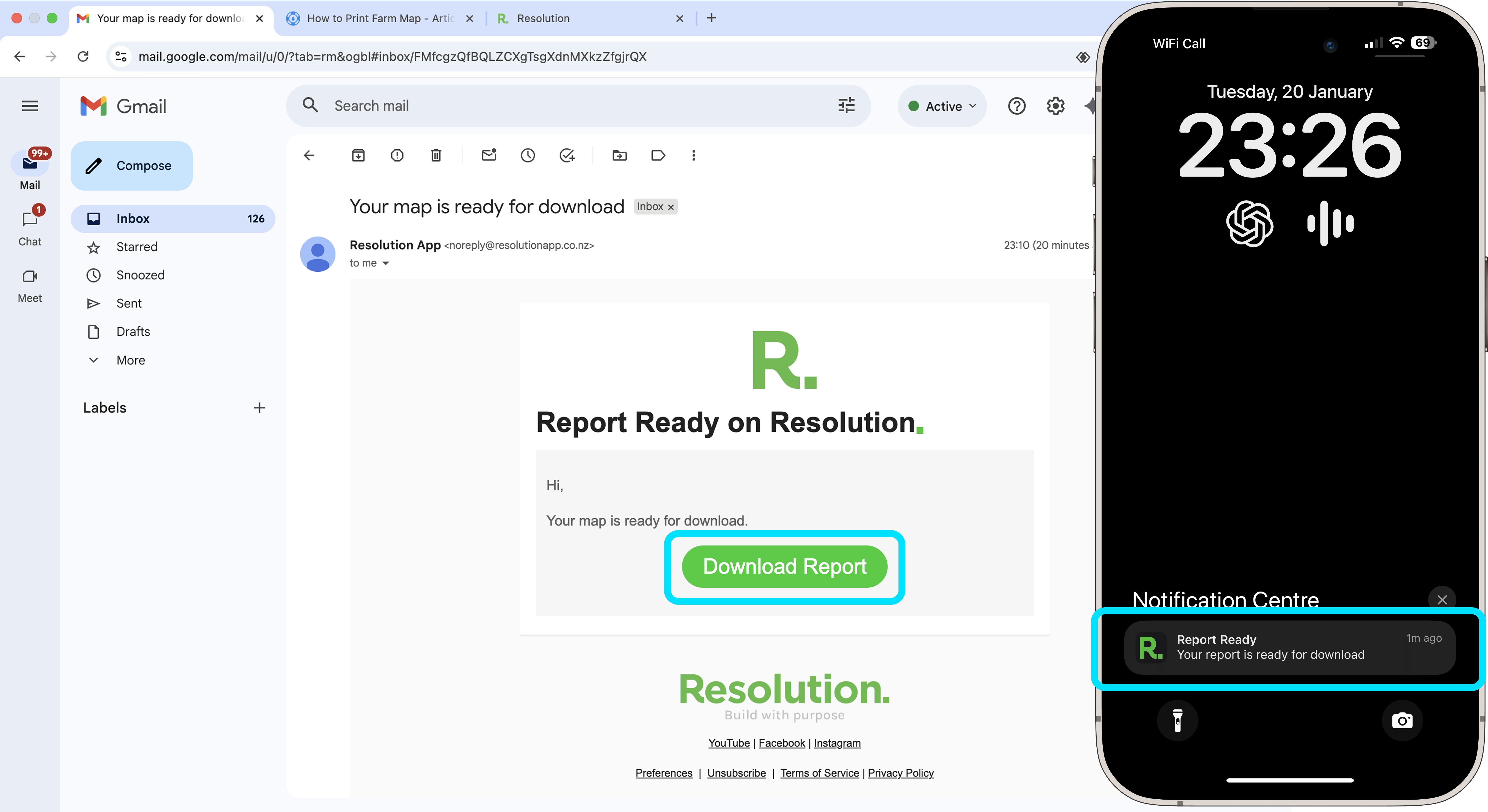
- Once your map is ready for download, you will receive both an in app notification and an email informing you that your map is ready for download.
- Click on one of these links to download your map.
- Once you have downloaded your selected map, you can then print or email it as needed.
NOTE: If you are in portrait orientation, the highlighted area will be portrait shaped. If you are in landscape orientation, the highlighted area will be in landscape.
How to Print Farm Map - Mobile
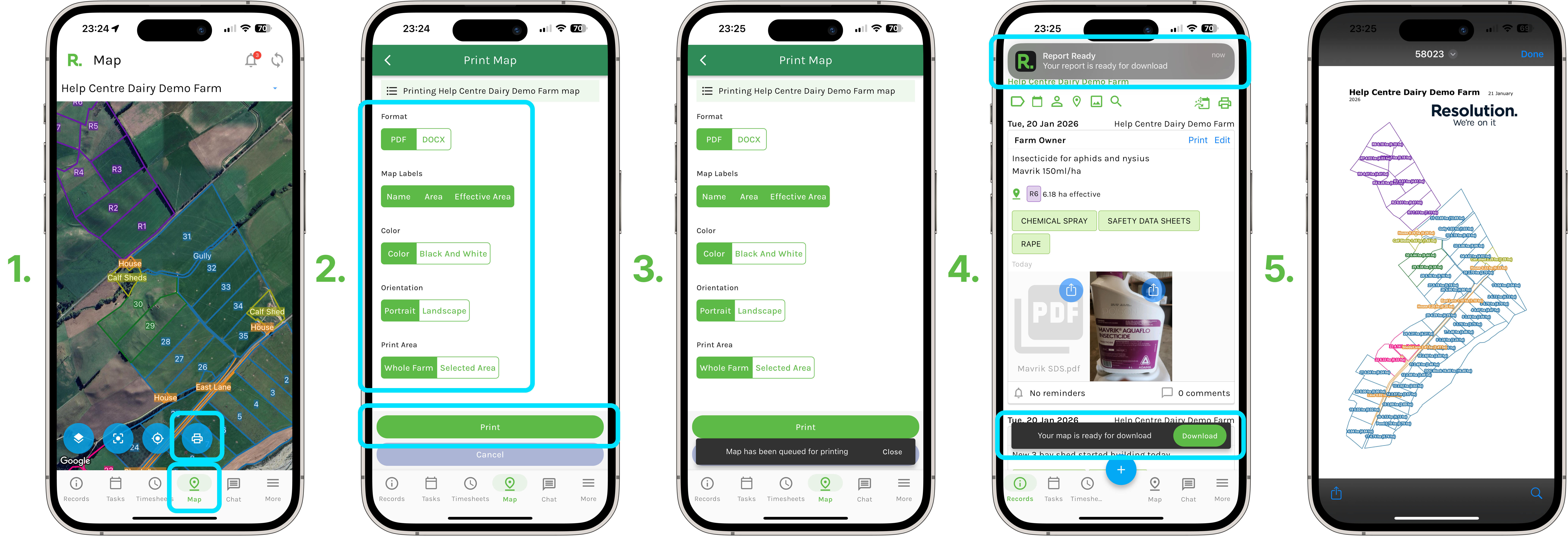
- Go to your Map page.
- Down the bottom, select the blue print button.
- Select from the options.
- Format: Choose from PDF or Word document
- Map labels: Toggle on and off which map labels you would like printed on the map (Name, Area and/or Effective Area)
- Colour: Choose between Colour or Black and White.
- Orientation: Choose how you would like your map to be printed - Portrait or Landscape.
- Print Area:
- ‘Whole Farm’ will print exactly how to map appears on your screen to your right.
- ‘Selected Area’ will allow you to select a specific area to print. You can zoom in on the map to customise this. The highlighted area is what will be printed.
- Select ‘Print’.
- Your map will now be queued for printing.
- Once your map is ready for download, you will receive both an in app notification and an email informing you that your map is ready for download.
- Click on one of these links to download your map.
- Once you have downloaded your selected map, you can then print or email it as needed.
NOTE: If you are in portrait orientation, the highlighted area will be portrait shaped. If you are in landscape orientation, the highlighted area will be in landscape.
Notifications when Map is Ready for Downloa d
- You will receive both an app notification and email notification once your map is ready for download.
- Select either the in app notification or the link in your email to download the map.
- Once you have downloaded your selected map, you can then print or email it as needed.