
NOTE: You can generate a report on both your phone and desktop.
Finding a Record and Choosing Your Options
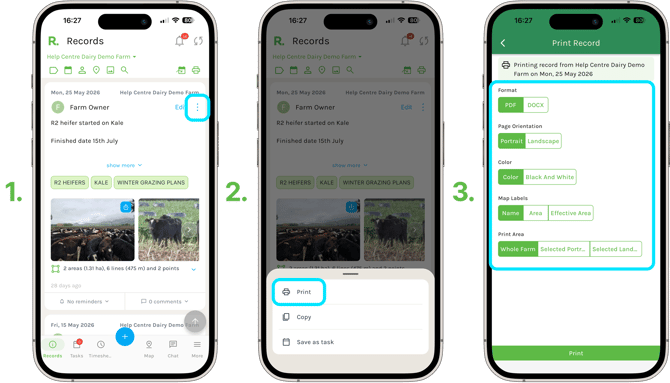
- Find the record or task you want to print by scrolling through your timeline, or using the filter options at the top of the screen.
- Select the three dots in the top right, then select Print from the menu.
The Print Record or Task screen gives you several options to personalise your report:
-
Format — choose PDF or DOCX.
-
Page Orientation — choose Portrait or Landscape.
-
Colour — choose Colour or Black And White.
-
Map Labels — if your report includes a farm map, choose the label to appear on it: Name, Area, Effective Area or none at all.
Choosing Your Map Print Area
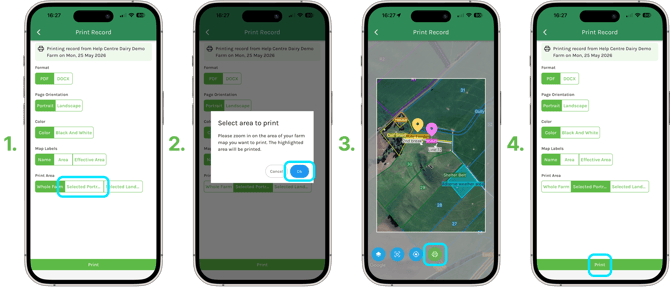
- Under Print Area, choose - Whole Farm, a Selected Portrait Area or Selected Landscape Area for a more precise view.
- If you choose a selected area, pan or zoom your map to find the view you want, then select Done.
- When you are ready, select Print.
Downloading Your Report
-
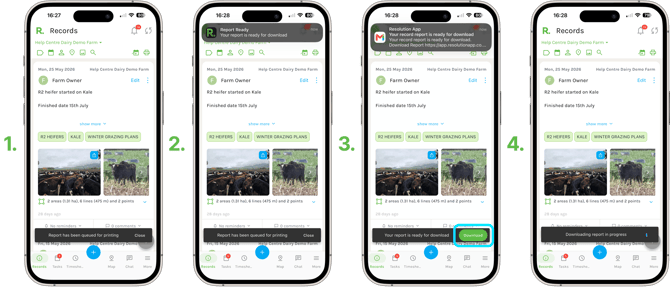
A notification appears at the bottom of the screen confirming your report has been queued.
-
Once it is ready, you will receive a notification in the app with a download link, and an email will also let you know it is ready.
-
Select Download in the app to open your report.
Viewing Your Report
-
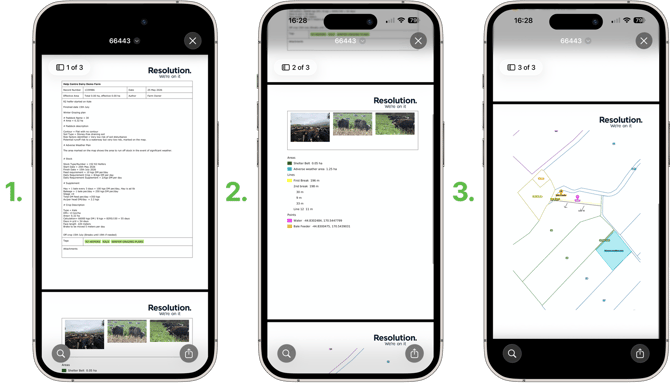
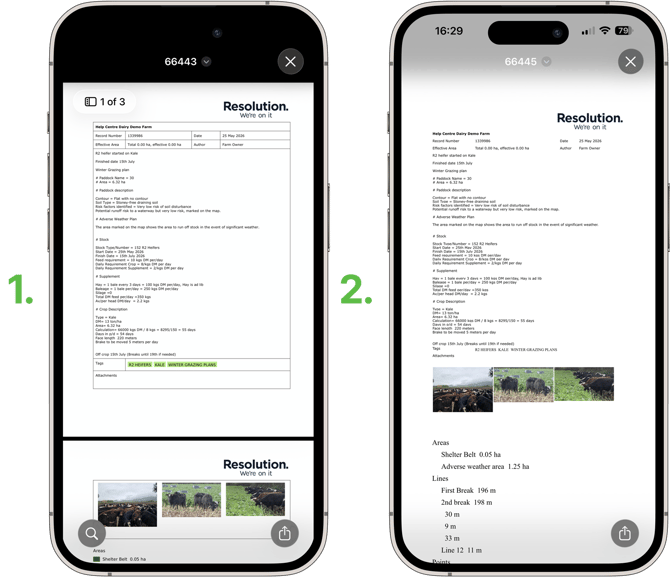
Your report opens with all the relevant details from the record or task, including any attachments and map layer.
PDF and Document Formats
-
Depending on the format you chose, your report appears as a PDF or as a document.
-
Both contain the same information — scroll to the bottom to see attachments, paddocks and map layers.
Saving Your Report
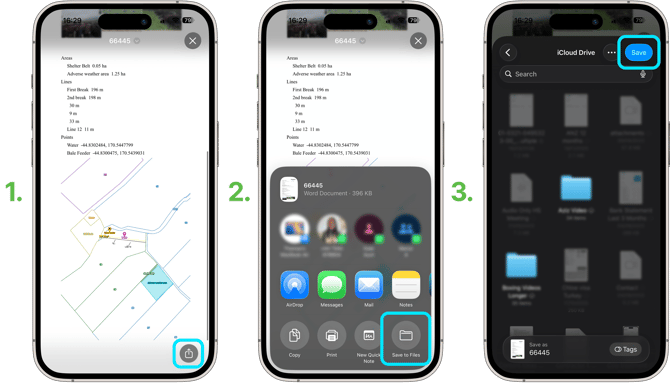
On your phone:
-
Select the share icon.
-
Select Save to Files.
-
Choose where you would like to save it, then select Save.
On desktop:
- Select Download
- Choose a name and location for the file and save it.
NOTE: From here you can print a physical copy, or share it with others by email.
NOTE: You can create a report for a task in exactly the same way.