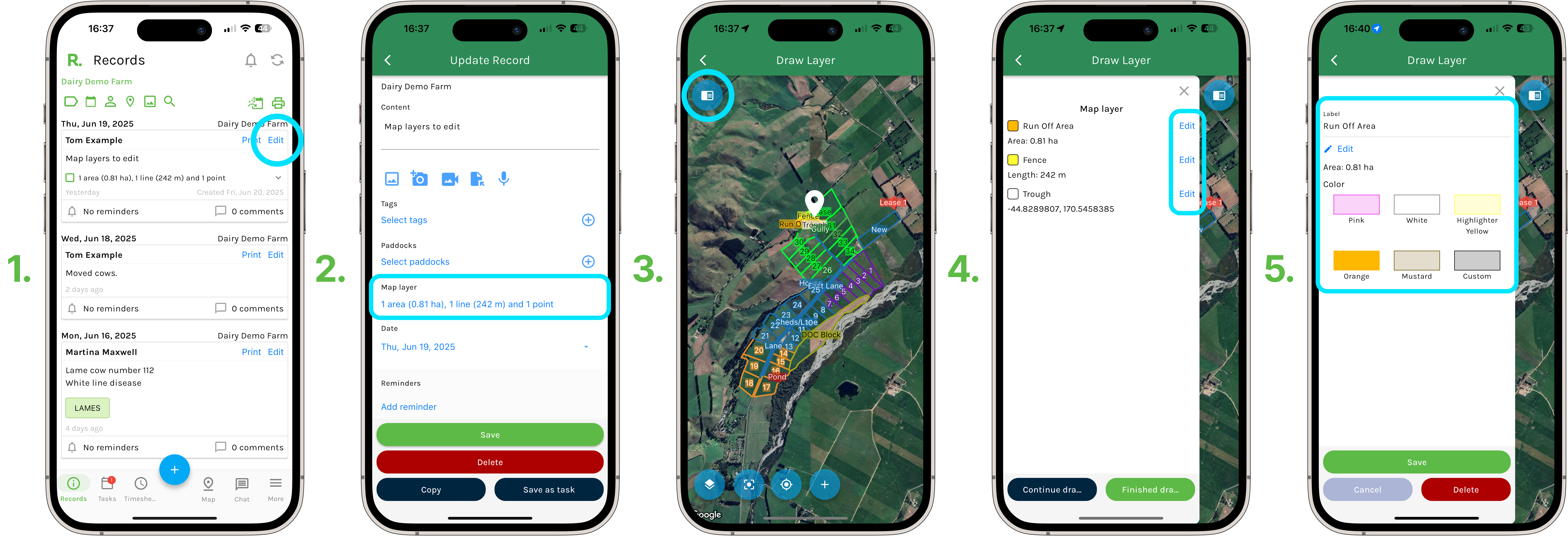
Steps to Edit Map Layers - Mobile
- Select ‘Edit’ on an existing record or task.
- Select the map layers (it will say, for example - 1 area (0.81ha), 1 line (242m) and 1 point).
- To edit the layer either -
- Select the blue menu button to see a full list of layers previously drawn on the map. Identify the area, line or point you wish to edit, and select ‘Edit’, or
- Simply zoom in and click on the area, line or point that you wish to edit on the map.
Note - If you wish to edit map layers on a record or task you are currently creating -
- After creating the map layer, edit options will be available, OR
- If the map layer has been saved already, repeat the options of Step 3 above.
Below, we will explain each of the different edit options available for map layers.
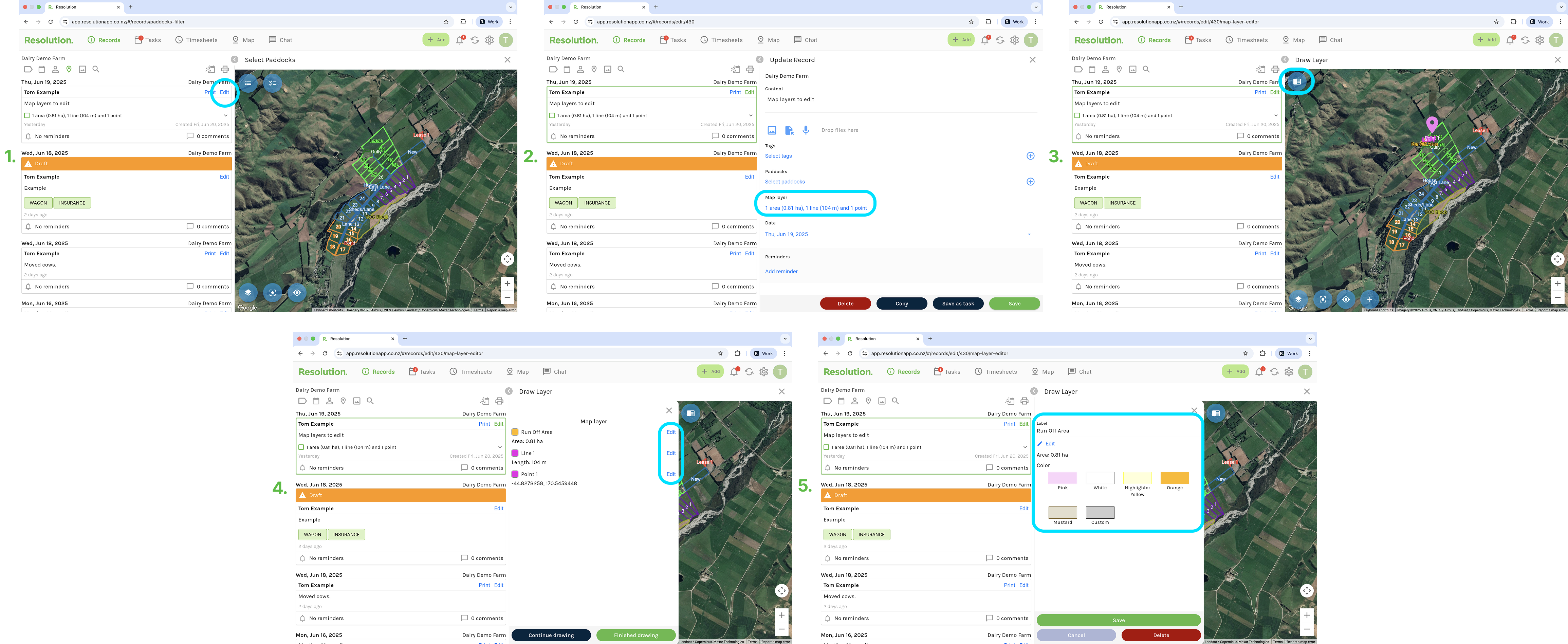
Steps to Edit Map Layers - Desktop
- Select ‘Edit’ on an existing record or task.
- Select the map layers (it will say, for example - 1 area (0.81ha), 1 line (242m) and 1 point).
- To edit the layer either -
- Select the blue menu button to see a full list of layers previously drawn on the map. Identify the area, line or point you wish to edit, and select ‘Edit’, or
- Simply zoom in and click on the area, line or point that you wish to edit on the map.
Note - If you wish to edit map layers on a record or task you are currently creating -
- After creating the map layer, edit options will be available, OR
- If the map layer has been saved already, repeat the options of Step 3 above.
Below, we will explain each of the different edit options available for map layers.
Label and Colour
- When editing or creating a map layer, we can choose a label (name) and colour for which the map layer will appear on the map.
- Ensure we select ‘Save’ after making those edits.
Changing Layer Position and Shape - Mobile
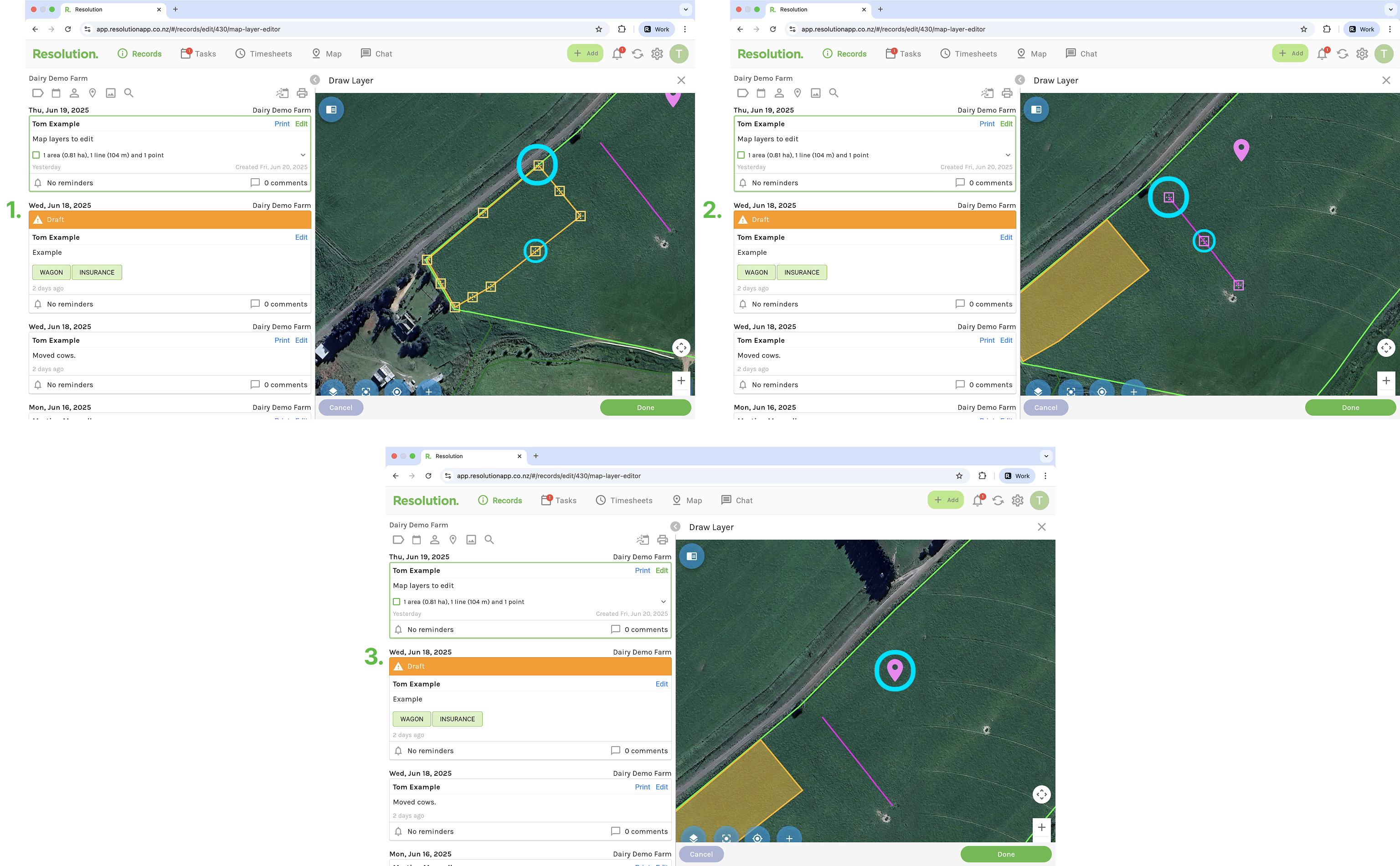
- On the edit screen, underneath the option to edit the label, we see an ‘Edit’ button, select this.
- Here we can edit the map layers.
- Area: Where the sides of our shape meet, we see our points. Long press and hold to drag these points to a new position on the map. This will maintain the same number of sides to the shape.
- Add an extra side: In the middle of each side of the shape, we have another point, long press and hold to drag this into a new position, and a new side to the shape will be created.
- Line: Where each individual line of the larger line intersect, we see our points. Long press and hold to drag these points to a new position on the map. This will maintain the same number of individual lines to the overall line.
- Add an extra line: In the middle of each individual line of the overall line, we have another point, long press and hold to drag this into a new position, and a new individual line within the overall line will be created.
- Point: Long press and hold to drag our point to a new location on the map.
- My Location: Same as editing a point.
- Area: Where the sides of our shape meet, we see our points. Long press and hold to drag these points to a new position on the map. This will maintain the same number of sides to the shape.