Steps to Change a Paddock Colour
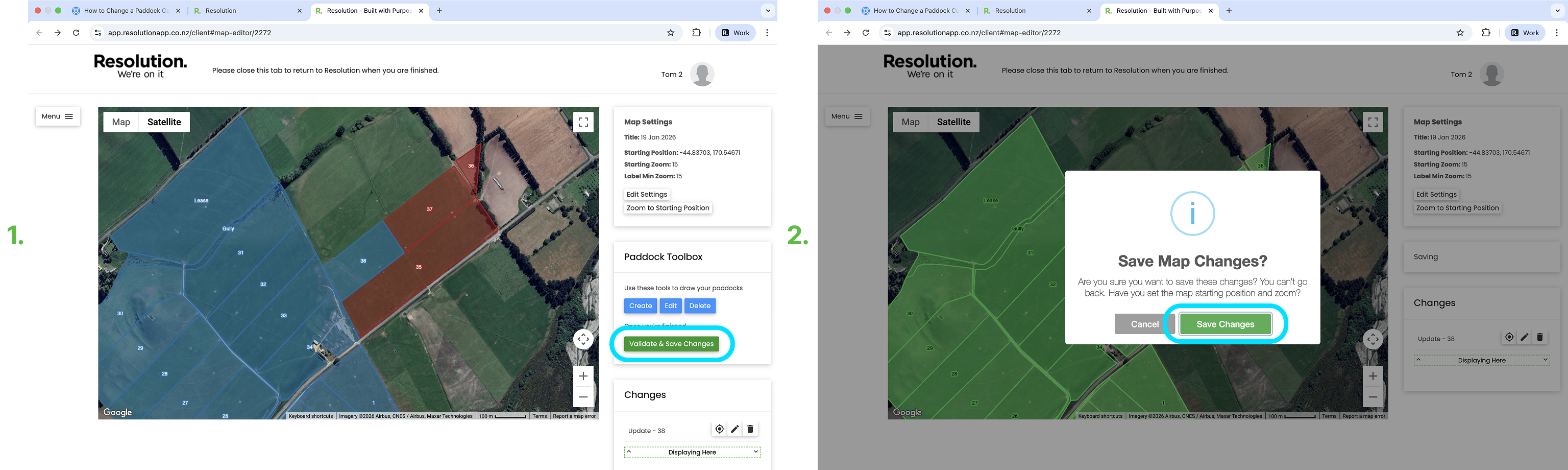
- From the Paddock Toolbox window on the right of the screen - Select ‘Edit’
- Click the paddock you wish to change the colour of.
- Select ‘Finish Drawing’.
- Choose ‘Select Colour’ on the tab on the right hand side of your page.
- Choose from one of the colours shown, or
- If you'd like more options, select ‘Custom’ and select your colour.
- Select ‘Save’.
Validate And Save Changes
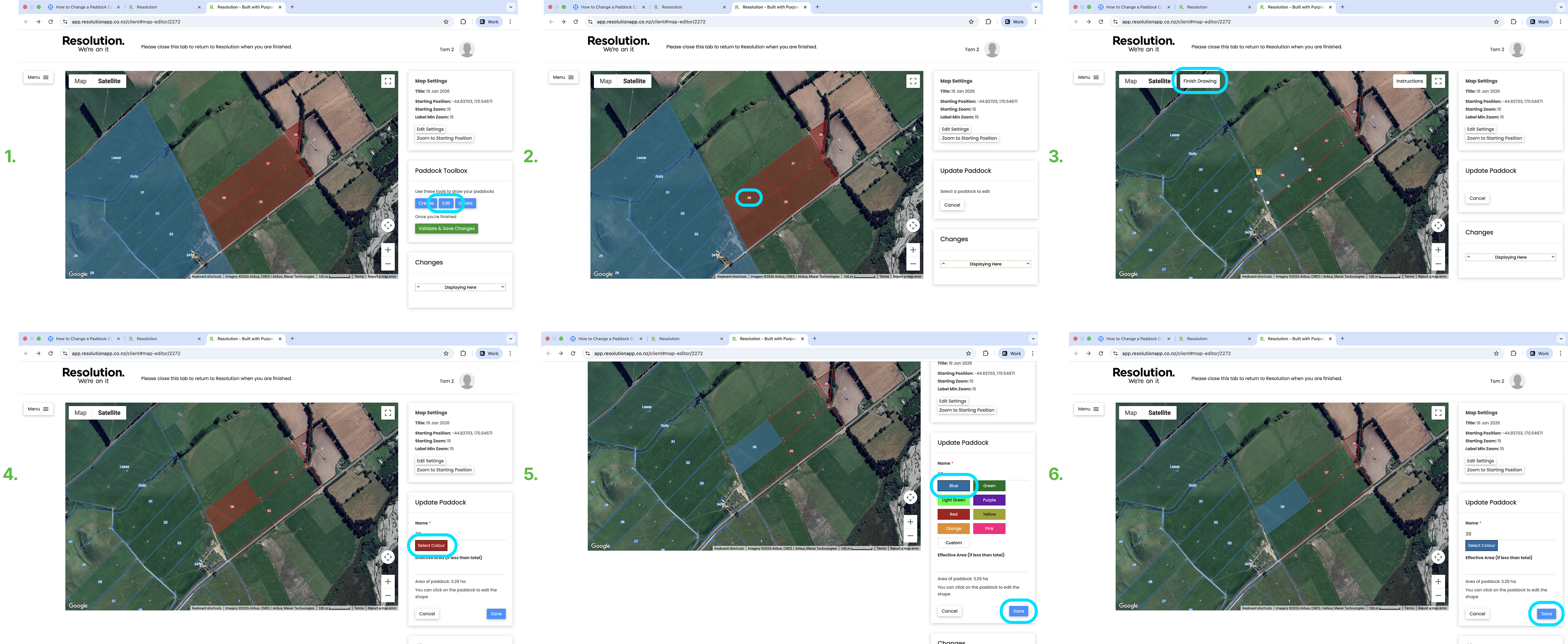
- After editing your paddock, you need to validate and save your changes.
- Pro Tip: We recommend only validating and saving your changes at the end, after all your changes have been made.
- To do so, select ‘Validate & Save Changes’.
- Select ‘Save Changes’ to confirm.
- Users will then need to sync the app for these changes to be visible.