Navigating Your Notifications
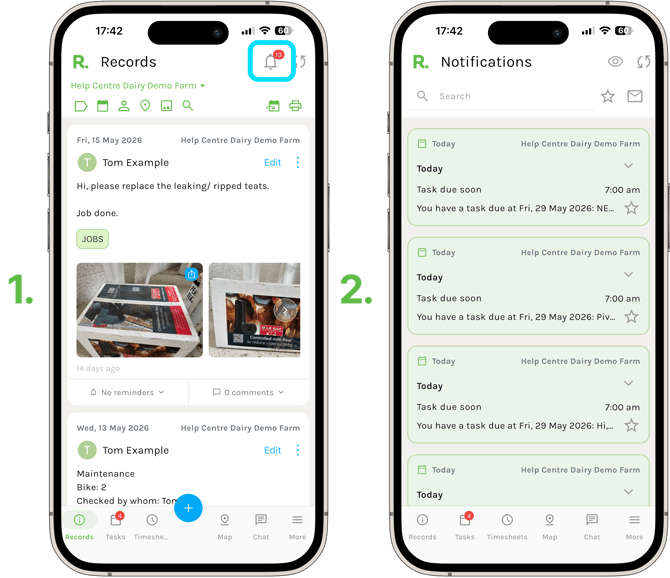
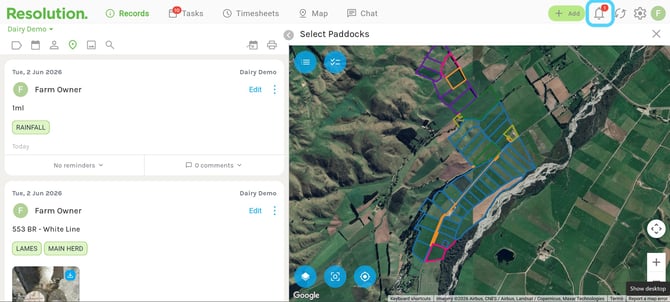
- Your notifications can be found under the bell icon in the top right of your app or desktop.
- The number displayed in the red circle tells you how many unread notifications you have waiting.
- Select the bell icon to open your notifications — they will appear in a list with the most recent at the top.
Reading Your Notifications
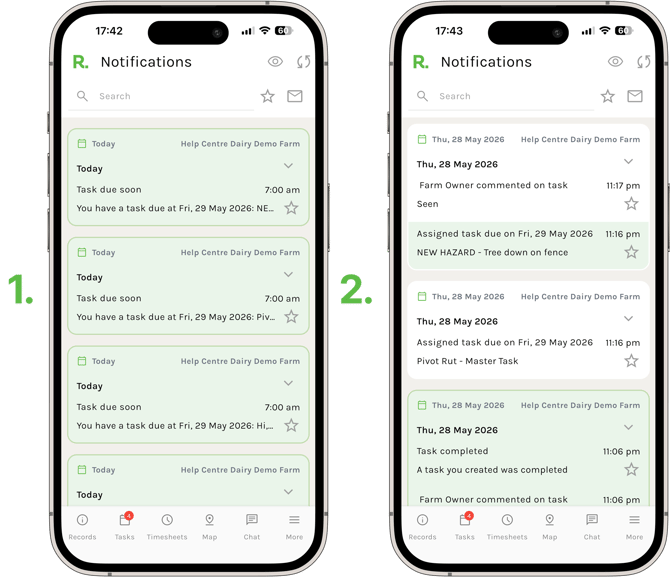
- Unread notifications are highlighted in green.
- Notifications you have already read will appear in white.
- To open an individual notification, simply select it to view or take action.
Searching Notifications
-
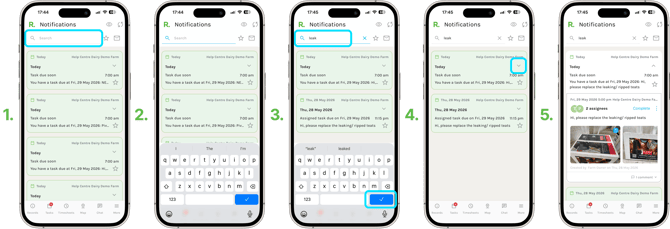
If you are looking for something specific, use the search bar at the top of the screen to find it quickly.
-
Type your search term and select the tick to confirm.
Starring Notifications
-
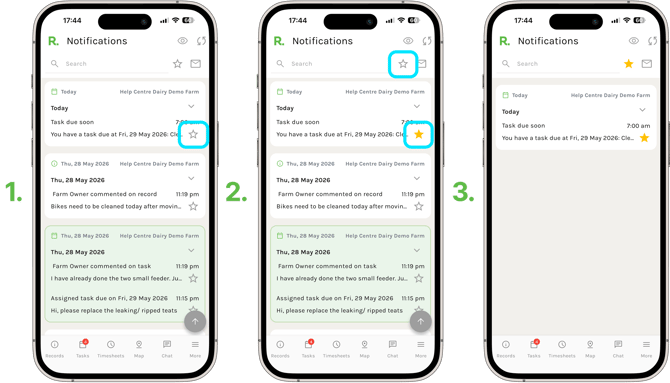
To come back to a notification later, select the star icon on that notification to save it.
-
Starred notifications are saved to their own list, which you can access any time by selecting the star icon at the top of the screen.
Filtering Unread Notifications
-
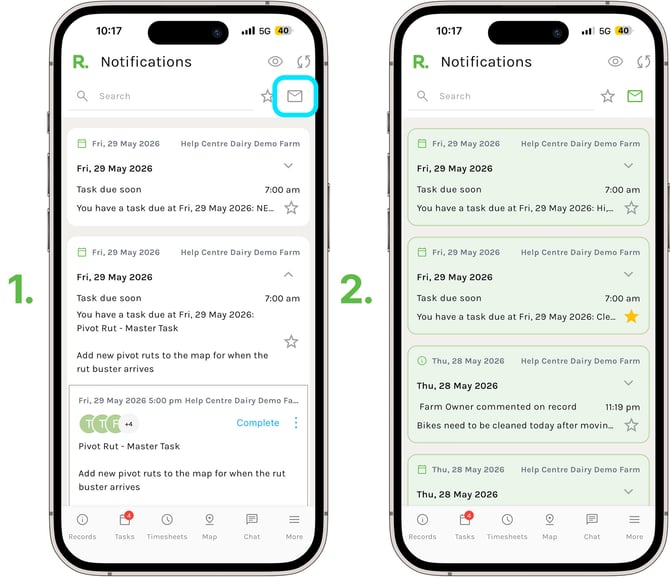
To view only your unread notifications, select the envelope icon at the top of the screen.
-
Selecting this a second time will bring you back to the full list.
Marking All Notifications as Read / Unread
-
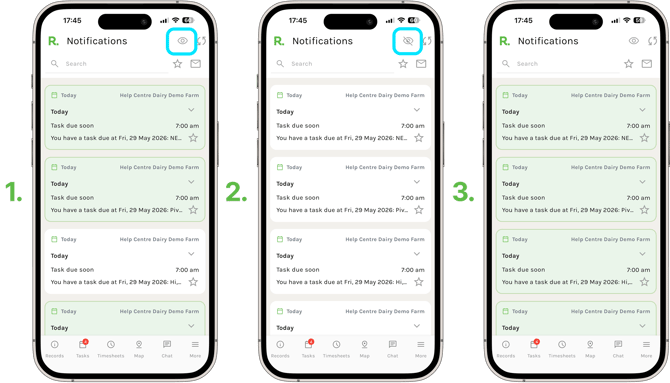
To mark all notifications as read, select the eye icon in the top right. The red circle will disappear and your notification list will reset.
-
Select the eye icon a second time if you would like to mark them all as unread again.
Multiple Farms
-
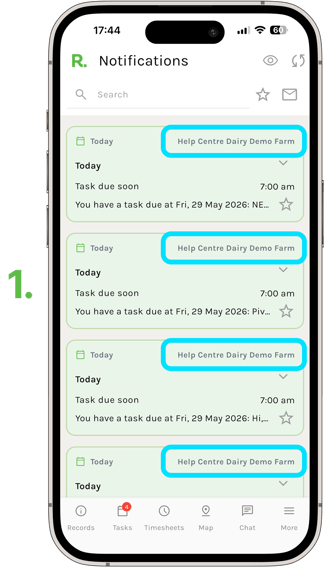
If you have access to multiple farms, all of your notifications will appear together in one list.
-
You will be able to see which farm each notification relates to on the right-hand side of each notification.