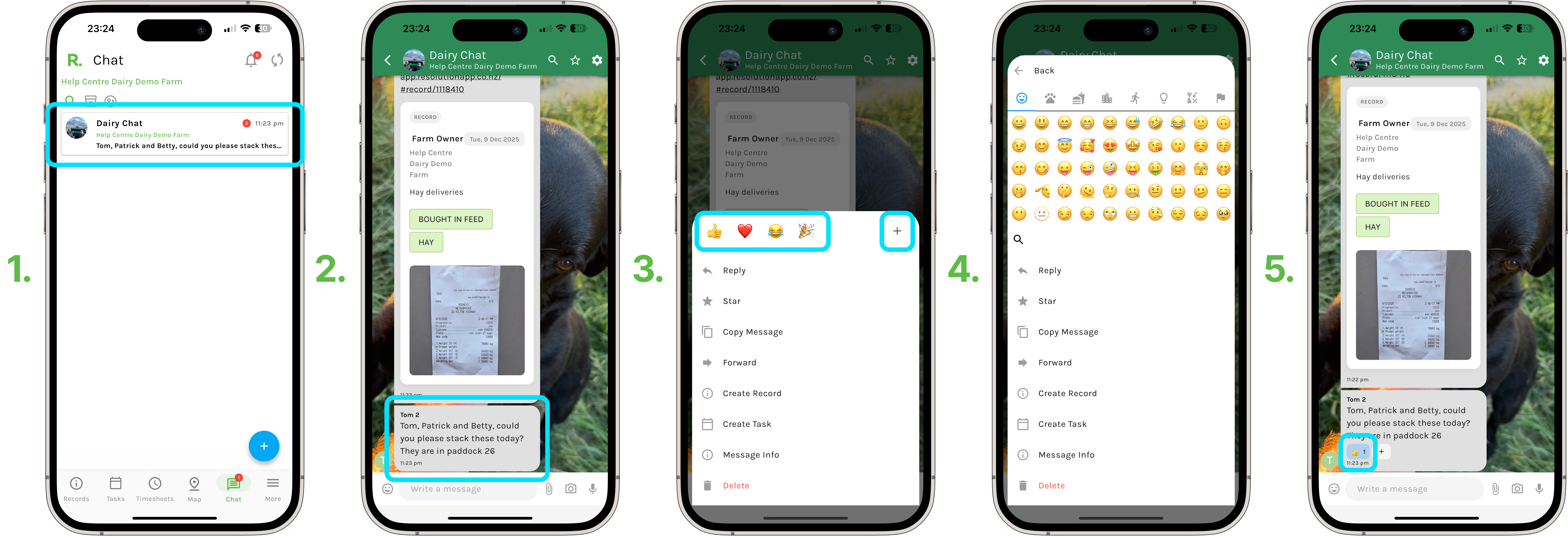
How to React to Messages - Mobile
- Select your chat.
- Identify the message you wish to react to, press and hold on that message.
- Select from one of the preset emojis to react with, or select the plus sign to view all the emojis available to react with.
- Simply select an emoji, and now you have reacted to a message.
- The user who sent the message will be notified that their message has been reacted to.
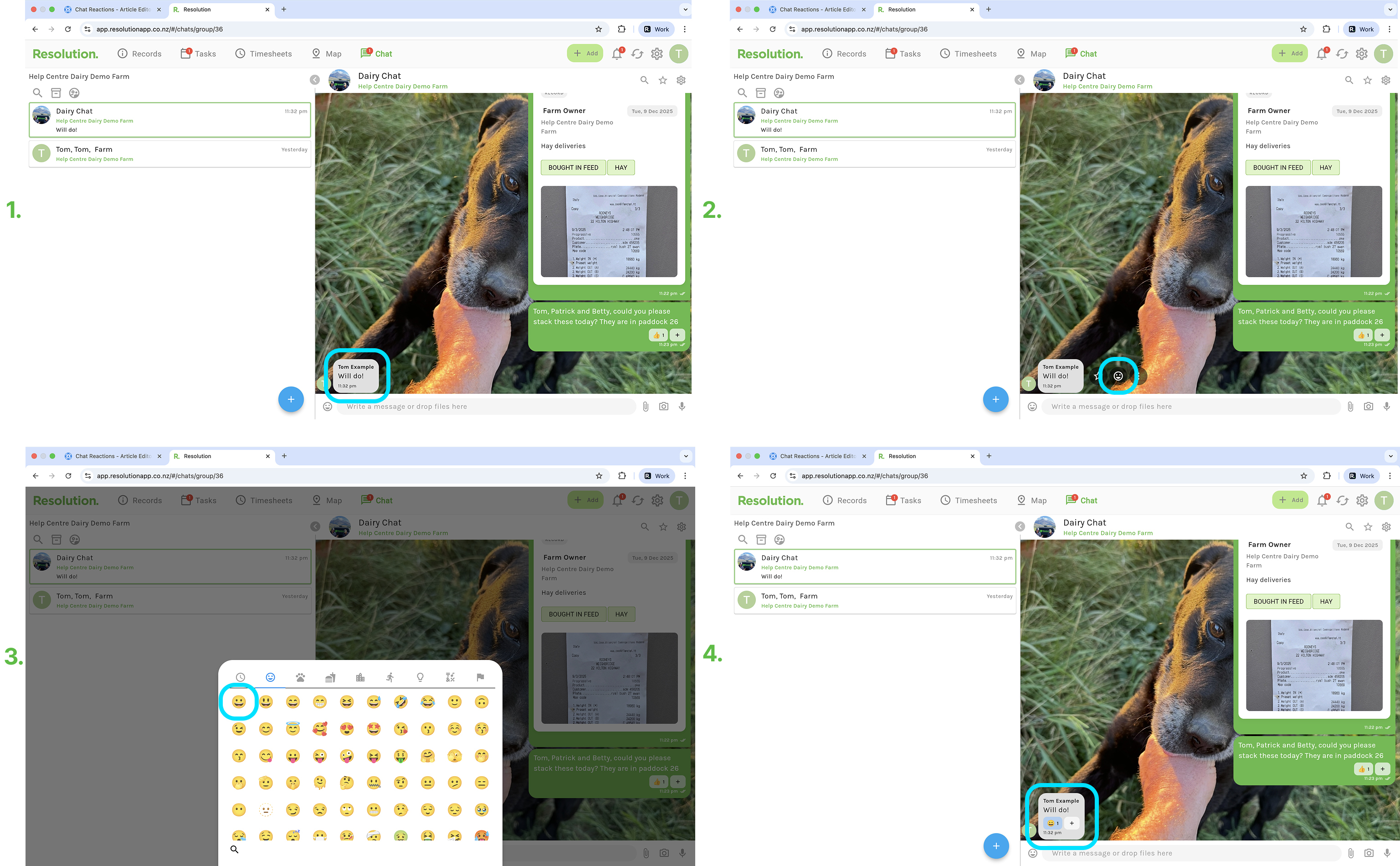
How to React to Messages - Desktop
- Hover your cursor over the message you wish to react to.
- Select ‘React’ (the smiley face).
- Select an emoji to react with.
- You have now have reacted to a message.
- The user who sent the message will be notified that their message has been reacted to.
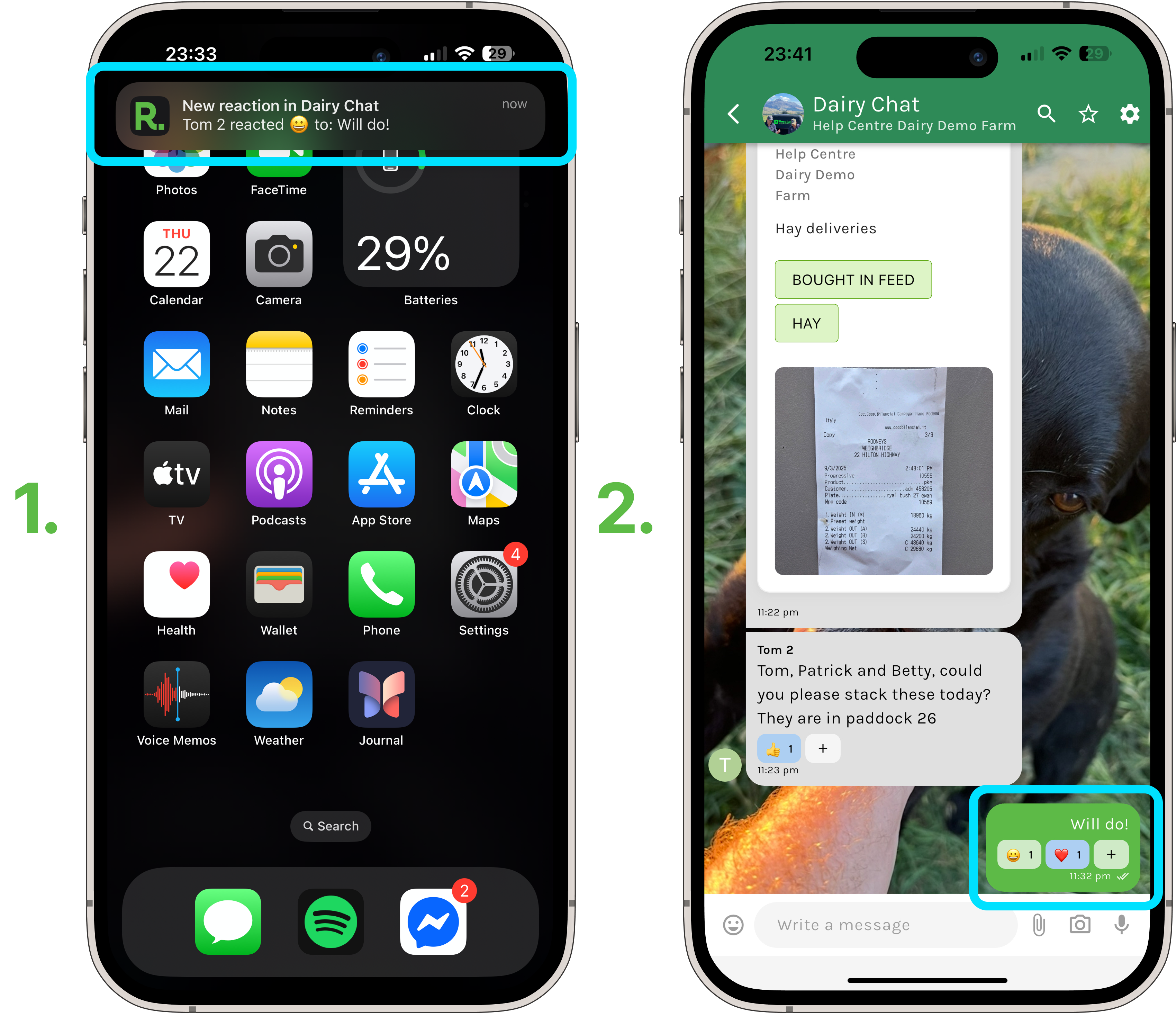
Chat Reaction Notifications / Information
- When you react to a message, the message sender will be notified and vice versa - if someone reacts to a message you have sent, you receive a notification.
- You can react to all messages within your Chat groups, including your own.
- Pro Tip - To view all reactions to your message (who reacted, with what, and when) - Simply click and hold on the message on mobile, or select the three dots on desktop, and then select “Message Info” from the menu.