
Update Your App
- Firstly, ensure Resolution is updated to the latest version.
- If you need an update, where the image is circled, it will say ‘Update’. Select this.
-1.png)
Steps to Access User Permission Settings - Mobile
- Select ‘More’ in the bottom right hand corner of your screen.
- Select ‘Settings’.
- Navigate to the Users section.
- Either select an existing user or select add a new user.
- Here you will see their user permissions.
NOTE: Only users with the farm manage permission enabled can view these settings, make edits and activate chat for other users.
Assign Chat Permissions To Yourself
- Firstly, assign the chat permissions to yourself.
- Your account will be the first listed name under ‘Users’.
- Give yourself the chat permissions.
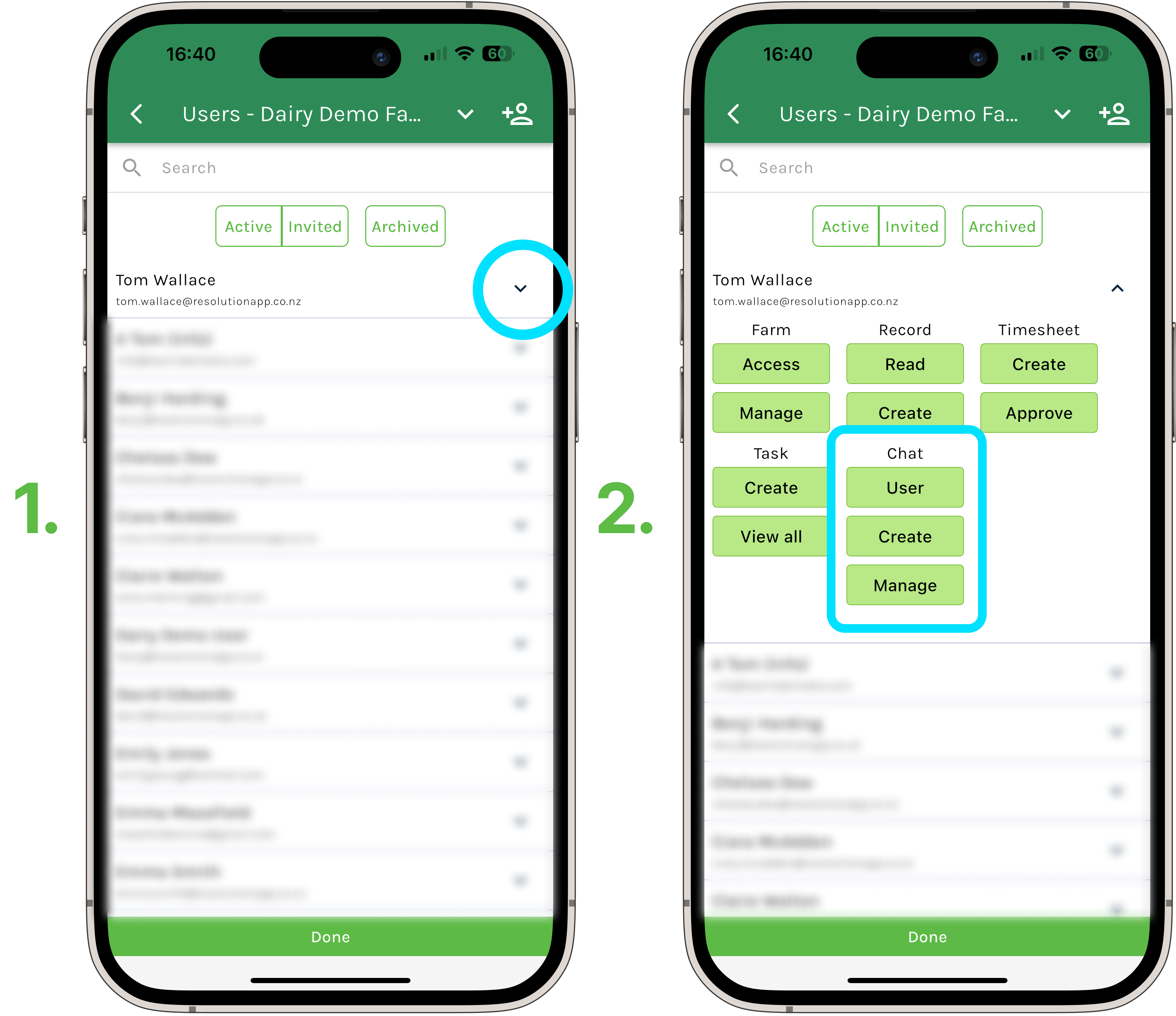
Give Chat Permissions To Other Users
- In the next lesson Chat Permissions, we will explain what each permission level means for your farm users.
- Go through and give all your farm users (who you want to have chat access) the relevant chat permissions.