
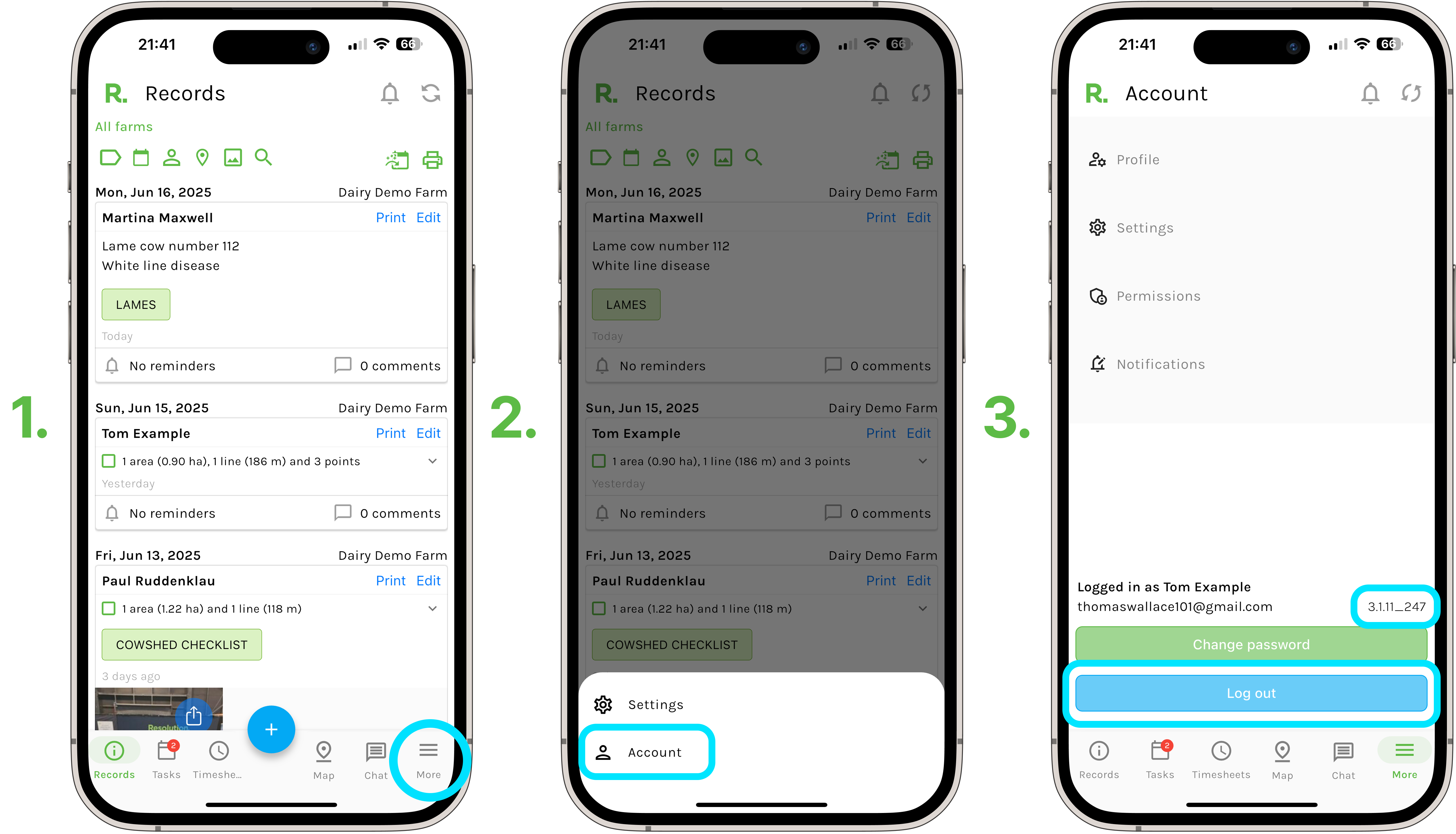
Steps to Log Out - Mobile
- Select ‘More’ in the bottom right hand corner of your screen.
- Select ‘Account’.
- Select ‘Log out'.
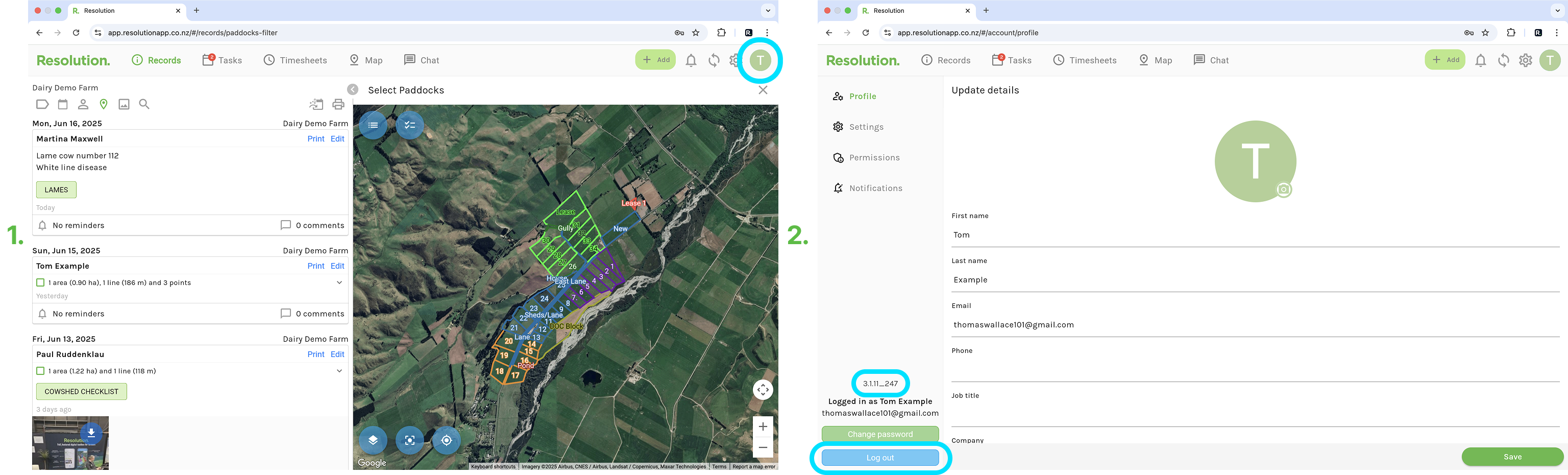
Steps to Log Out - Desktop
- Select ‘Account’ in the top right hand corner.
- Select ‘Log out'.
App Version Number
- On both mobile and desktop, just above the log out button, we have the current app version number. The small highlighted blue area, above the log out button in the above photos.
- This number let's us know whether your app is up-to-date.
NOTE - To check if your app is up to date -
- Go to the App Store or Play Store.
- Search and select ‘Resolution App’.
- If the option says “Open” - then you are using the latest Resolution app version.
- If the option says “Update” - then you are not currently using the latest Resolution app version. Simply select “Update” and this will update your app to the latest Resolution app version.